cPanel Backup and Restore
Protect your data, plan your migration and test before switching.


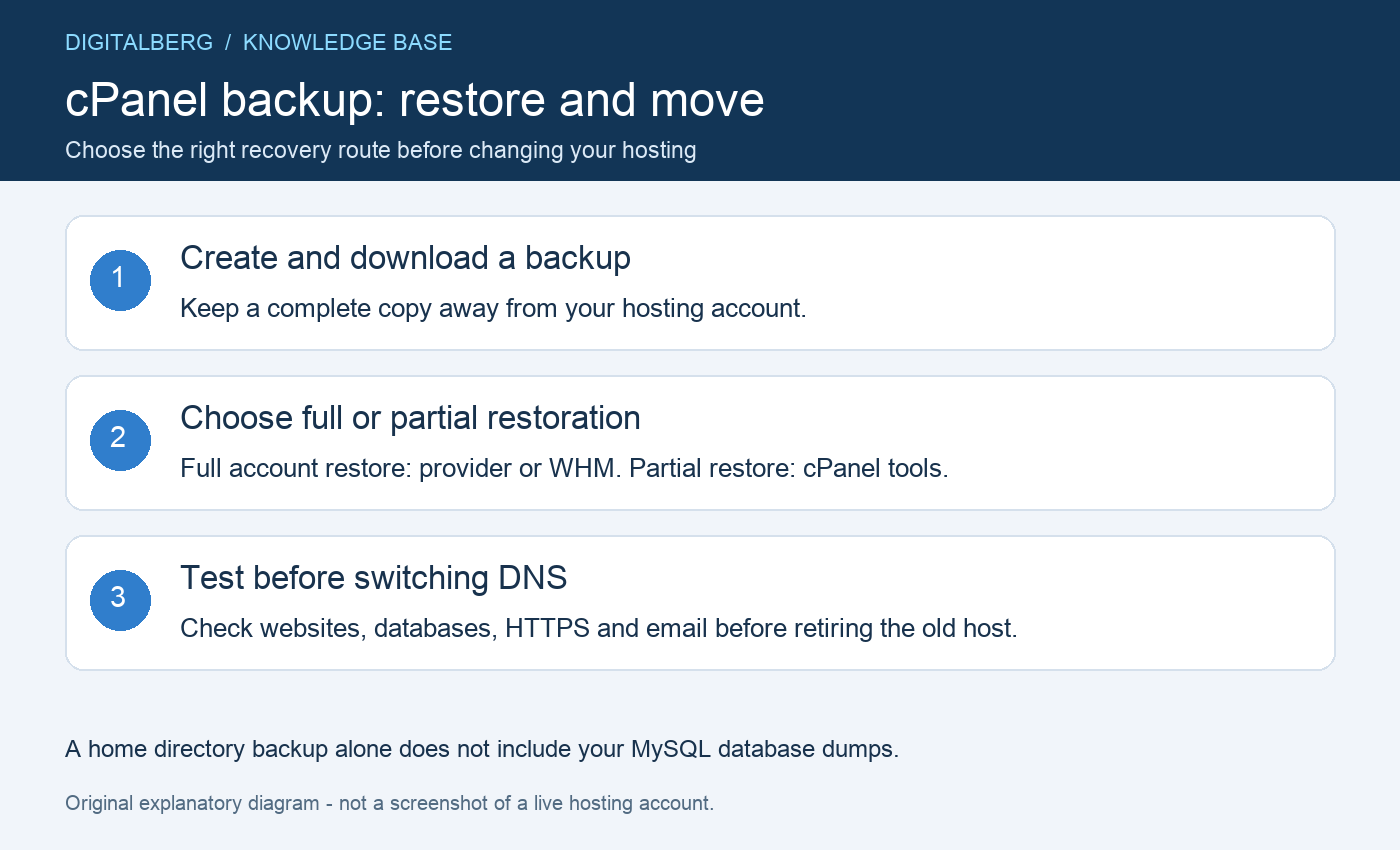
A cPanel backup gives you a recovery copy before moving hosting or repairing a website. The right restoration method depends on what you saved: a full account archive needs provider or WHM assistance, while supported partial backups can be restored through cPanel.
This guide covers both routes and explains how to test a move before switching DNS. Keep the old hosting active until your website, databases and email work correctly on the destination.
List the domains, website folders, databases, mailboxes, scheduled tasks and application settings you need to move. Check available disk space on both accounts. A backup may fail if the source account lacks room to create the archive.
Ask the destination provider which transfer methods are available and whether they can restore your archive. Confirm any migration charges and eligibility directly with DigitalBerg; do not assume an old offer still applies to your account.
For a shop, booking system or busy forum, arrange a final synchronisation window. Orders, uploads and messages created after the backup will not be in that copy. Decide when to pause writes and how to capture the final changes.
| Backup type | Best used for | Restoration route |
|---|---|---|
| Full account archive | Moving a cPanel account or recovering account data | Hosting provider or an appropriately authorised WHM administrator |
| Home directory | Recovering website files and other included home-folder data | Supported partial restore or a carefully scoped file recovery |
| Database export | Recovering application records | Database restore or import, followed by connection checks |
| Forwarders and filters | Recovering supported email routing settings | Matching partial restore; verify mailboxes separately |
A home directory archive is not a substitute for a separate MySQL database export. Likewise, exporting email forwarders does not make a complete mailbox backup. Check what your chosen archive includes and keep all required components together.
cPanel’s Backup documentation explains the available downloads. Your provider may offer additional backup software with a different interface and retention policy.
In cPanel, open Files → Backup Wizard → Back Up → Full Backup. Choose Home Directory as the destination, enter an email address for completion notification if wanted, then click Generate Backup.
Wait for completion before downloading the archive from the backup screen. Record the filename, creation time and source account. A confirmation that generation started does not mean the file is ready.
Download a copy to secure storage outside the hosting account. Keep archives out of public_html and other publicly accessible folders because they can contain private files and credentials. For a large archive, agree a private transfer method with your provider.
For individual components, choose the appropriate partial backup instead. The official Backup Wizard guide describes these controls. Our full backup guide provides related help.
You cannot automatically restore a full account archive through the ordinary cPanel backup screen. Contact your destination provider or use an authorised WHM restoration workflow. Uploading the archive to File Manager alone does not restore an account.
Give support the source username, archive filename, private storage location, destination account details and preferred migration window. Use the provider’s secure ticket system for sensitive information. Do not post an archive link publicly or send passwords in an ordinary message.
Ask what will happen to any existing destination account. A full restoration may replace data or conflict with existing usernames and domains. Back up the destination and agree the scope before restoration begins.
Keep the source copy until the provider confirms completion and you have tested the result. A successful restore job is the starting point for checking the application, rather than proof that every service is ready.
For a supported partial cPanel backup, open Backup Wizard → Restore, select the matching component, choose its backup file and upload it. Back up the destination first: restoring older files or database records can overwrite newer work.
When moving one application manually, transfer its files to the correct domain folder, create a destination database and user, and import the SQL export using the available database tool. For a large import, ask support to handle server limits rather than repeatedly uploading an incomplete file.
Update the application’s configuration with the destination database details. Account prefixes, usernames and database hosts can differ. A file-only transfer often leaves a database-driven website unable to load.
For WordPress, preserve the existing database and configuration during migration; our manual WordPress installation guide explains the connection settings, but do not run a fresh installer over your migrated site.
Moving from a different control panel may require an application migration tool or separate file, database and email transfers. A CSV file is not generally a complete replacement for an application’s SQL database export.
Use a provider-supported preview method or a local hosts-file override for your real domain. A temporary URL may not reproduce domain-dependent redirects, cookies or HTTPS behaviour. Check the homepage, important pages, images, logins, forms and any checkout flow using an appropriate test mode.
Verify the PHP version, extensions, file permissions, scheduled jobs and database connection. Confirm certificates cover the required hostnames. Test email sending and receiving, and preserve MX, SPF, DKIM and DMARC records if email is staying with its existing provider.
Then change the required DNS records or nameservers according to the destination instructions. Review our DNS zone guide before editing. Changing nameservers also changes which DNS zone is authoritative, so recreate required records first.
DNS caches refresh according to record lifetimes and resolver behaviour. Allow an overlap period and monitor traffic on both servers instead of assuming every visitor switches at the same moment.
Check recent transactions, uploads and messages again after the switch. Capture any final changes from the old host through the migration method agreed earlier. Prevent both copies from accepting independent changes for an extended period.
Take a fresh cPanel backup on the destination and keep an independent copy. Confirm scheduled backups, retention and a practical restore process. Only retire the old service once the move is complete and the recovery copies are usable.
Check account quota, available disk space and whether generation finished. If the archive is unexpectedly small or the interface reports an error, ask support to review it before relying on that copy.
Check that the SQL data was restored, the dedicated user has access and the application uses the new database credentials. Website files and database contents need to belong to the same recovery point.
A targeted recovery may be possible by extracting the required file privately and uploading it to the correct location. Keep a copy of the destination file first. Avoid extracting an entire account archive into a public website folder.
Contact DigitalBerg with your source control panel, approximate data size and required services. Ask the team to confirm the supported transfer route, timing and cost before scheduling the move.