Find Script Configuration Files
Locate the active application settings without exposing credentials.


Script configuration files often hold database connections, paths and application secrets. Their location depends on the software version and deployment layout. Start at the application’s installation directory, not automatically at the root of the hosting account, and identify the active file before editing it.
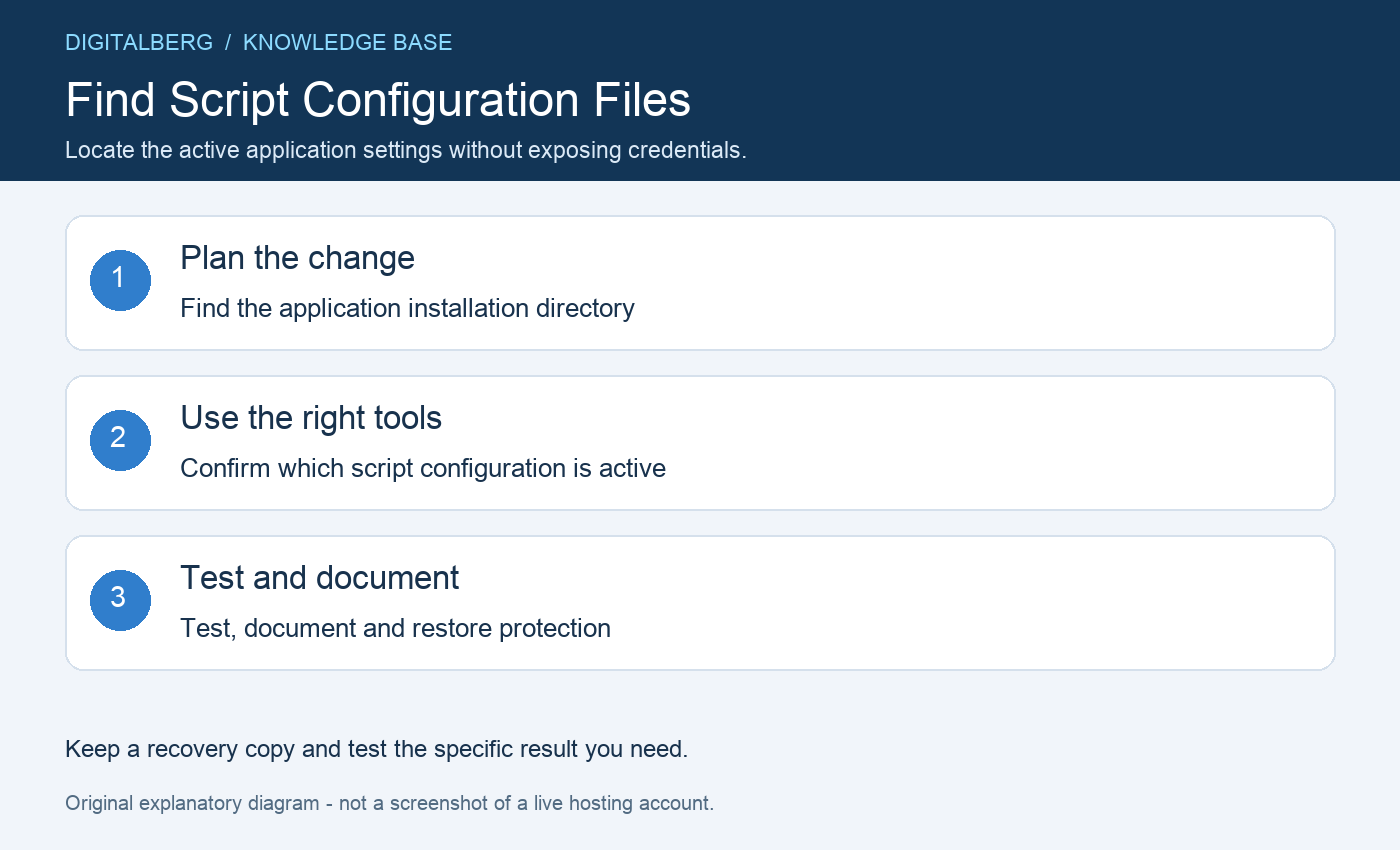
Check the domain’s document root in cPanel and look at the files it contains. A blog in public_html/blog has a different application root from a separate website elsewhere in the account.
Some modern applications expose only a public subfolder to the web while keeping configuration above it. A configuration file missing from public_html is not necessarily missing from the application.
The following are common starting points relative to the application root. They are not a guarantee for customised installations:
| Application | Common configuration location | Important qualification |
|---|---|---|
| WordPress | wp-config.php | May be one directory above the WordPress installation |
| Joomla | configuration.php | Site-wide configuration in the site root |
| Drupal | sites/default/settings.php | Multisite can use a site-specific directory |
| Self-hosted WHMCS | configuration.php | Cloud-hosted services may not expose files |
| Magento 2 / Adobe Commerce | app/etc/env.php and app/etc/config.php | Environment-specific and shared deployment configuration differ |
Older releases can use different paths, such as Magento 1’s app/etc/local.xml. Identify the version rather than applying an old file list to a new installation.
In cPanel File Manager, enable hidden files in Settings when needed. Some frameworks use a hidden .env file, while others receive settings through the hosting environment or container configuration.
Do not copy an environment file into the public document root just to make it easier to find. Our File Manager guide explains how folder placement affects public access.
Check the application’s documentation and deployment records before changing anything. A file named config.example.php, .env.example or wp-config-sample.php may be a template rather than the live configuration.
Drupal multisite and environment overrides can select different settings for different hostnames. The Drupal installation reference describes site-specific settings. Avoid editing every similar-looking file until one works.
Download a private recovery copy before editing script configuration. Use a plain-text editor, retain quoting and delimiters, and change one relevant value at a time. Never paste real passwords into a public support conversation.
Do not leave configuration.php.bak or a ZIP copy in a public folder. Those copies may be served as plain text even when the original PHP file is executed normally. Apply the permissions required by the application and provider.
During a hosting move, database names, users and hosts may change. Update the actual connection values after creating and granting the destination user access. A configuration change cannot import a missing database.
Do not regenerate application encryption keys casually. For example, self-hosted WHMCS requires preservation of its encryption hash to decrypt existing data. Consult its configuration reference before changing security-sensitive values.
Reload the website and test the affected administrative function. Review logs for syntax or connection errors, then restore any temporary permission changes. Clear application configuration caches only through the application’s supported procedure.
Record the file path, purpose and change without recording secrets in a shared document. For Joomla, use its Global Configuration guide; for Commerce, review the deployment files reference.
Use the official wp-config.php documentation for the file format and supported placement. Our manual installation guide explains the basic database connection.
Identify the application version and whether it is managed or deployed through a platform. Ask your developer or DigitalBerg to confirm the active settings source. Avoid creating an unverified config file that may expose secrets without changing the application.
For help with script configuration, contact DigitalBerg with the affected domain, the step you tried and a redacted error message. Never include passwords, private keys or complete configuration files containing secrets.




 Addon Domain in cPanel: 7 Easy, Essential Steps