PHP Configuration in cPanel
Choose a supported version and test changes one domain at a time.


PHP configuration controls the version and runtime settings used by your website. Modern cPanel accounts commonly provide MultiPHP Manager and MultiPHP INI Editor, while some environments use a different selector. This guide replaces older instructions for the legacy PHP Configuration plugin.
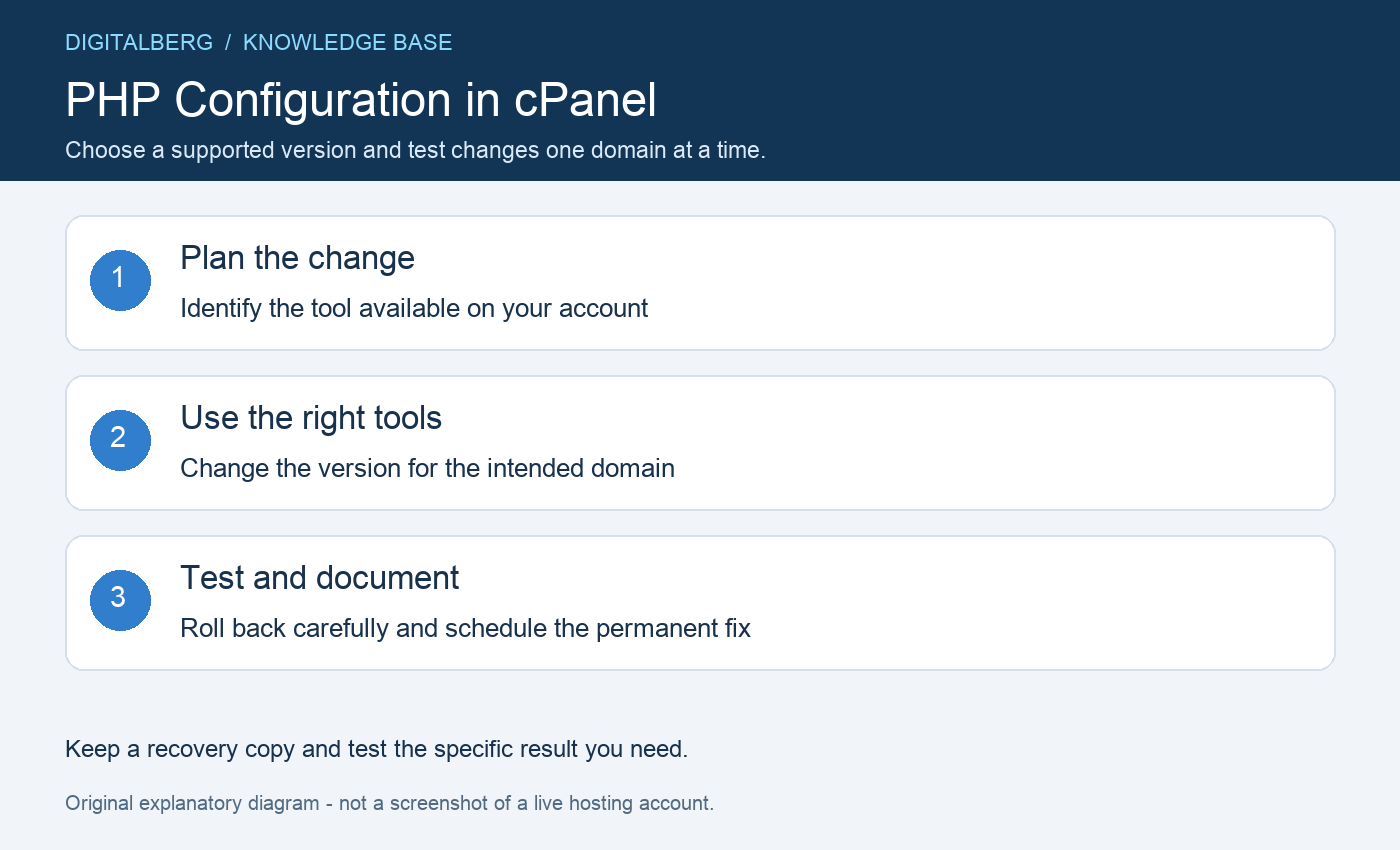
Sign in to cPanel and search the Software section for MultiPHP Manager, MultiPHP INI Editor or a provider-supplied PHP selector. The tools available depend on the hosting environment and enabled features.
A missing legacy icon does not mean PHP cannot be managed. Ask DigitalBerg which tool controls your domain before adding manual handlers or installing a plugin.
Note the affected domain, document root, selected PHP version and existing custom settings. Back up the site files and database, then identify the important workflows to test, including logins, forms, checkout and scheduled tasks.
Use a staging copy for compatibility checks when practical. A successful homepage load does not confirm that every plugin, integration or background job supports a new runtime.
Check the requirements of the application, theme, plugins and encoded components. Select a version that is both available on your server and supported by the application vendor. PHP’s supported versions page distinguishes active support from security-only support.
Keeping an obsolete version indefinitely is not a maintenance plan. If a site fails on a supported release, update or replace the incompatible component and agree a short-term recovery path with support.
In MultiPHP Manager, select the relevant domain, choose an available version and apply the change. An inherited setting follows the server’s configured default, which may change independently of your site.
Review domains that share a document root before changing settings. Do not assume every hostname is isolated. cPanel’s MultiPHP Manager guide explains the interface and inheritance behaviour.
Use MultiPHP INI Editor when changing supported runtime directives such as memory_limit, upload_max_filesize or post_max_size. Select the specific domain rather than the account home directory unless you deliberately need a wider change.
Record each original value and change only what addresses an observed requirement. Upload size can be constrained by several layers, so increasing one PHP value may not remove an application, proxy or hosting limit. See the INI Editor documentation.
Check the runtime information exposed by your application, such as WordPress Site Health, and test the workflows you listed. Review server error logs for new compatibility errors.
The PHP version used by an SSH command or cron job can differ from the website’s version. Ask support which executable your scheduled task should use. Avoid leaving a public phpinfo page online, because it exposes detailed server information.
If the change breaks the site, restore the previous supported configuration where available and investigate the specific component. Keep a record of the error, affected page and change time.
Do not delete all PHP settings files as a general reset. Those files may contain unrelated application requirements. Review inherited settings, .user.ini and hosting-managed directives with support before removing anything.
No. It changes supported runtime directives. Use the designated version manager to switch the PHP runtime itself.
Only when your provider explicitly requires that handler for your environment. A handler copied from another server can break execution. Check our configuration file guide and keep a recovery backup before making changes.
For help with PHP configuration, contact DigitalBerg with the affected domain, the step you tried and a redacted error message. Never include passwords, private keys or complete configuration files containing secrets.




 Internal Server Error 500