Cron Job Command Guide
Use the right runtime, set a sensible schedule and verify every task.


A cron job command tells your Linux hosting account which program to run and which task to perform. In cPanel, enter the command separately from the timing fields. Use full paths, select the correct interpreter and keep useful error output while testing.
This guide provides templates for PHP scripts, shell scripts and scheduled HTTPS requests. Replace every placeholder with values confirmed for your account. Follow your application’s own scheduling instructions when they specify a particular command or interval.
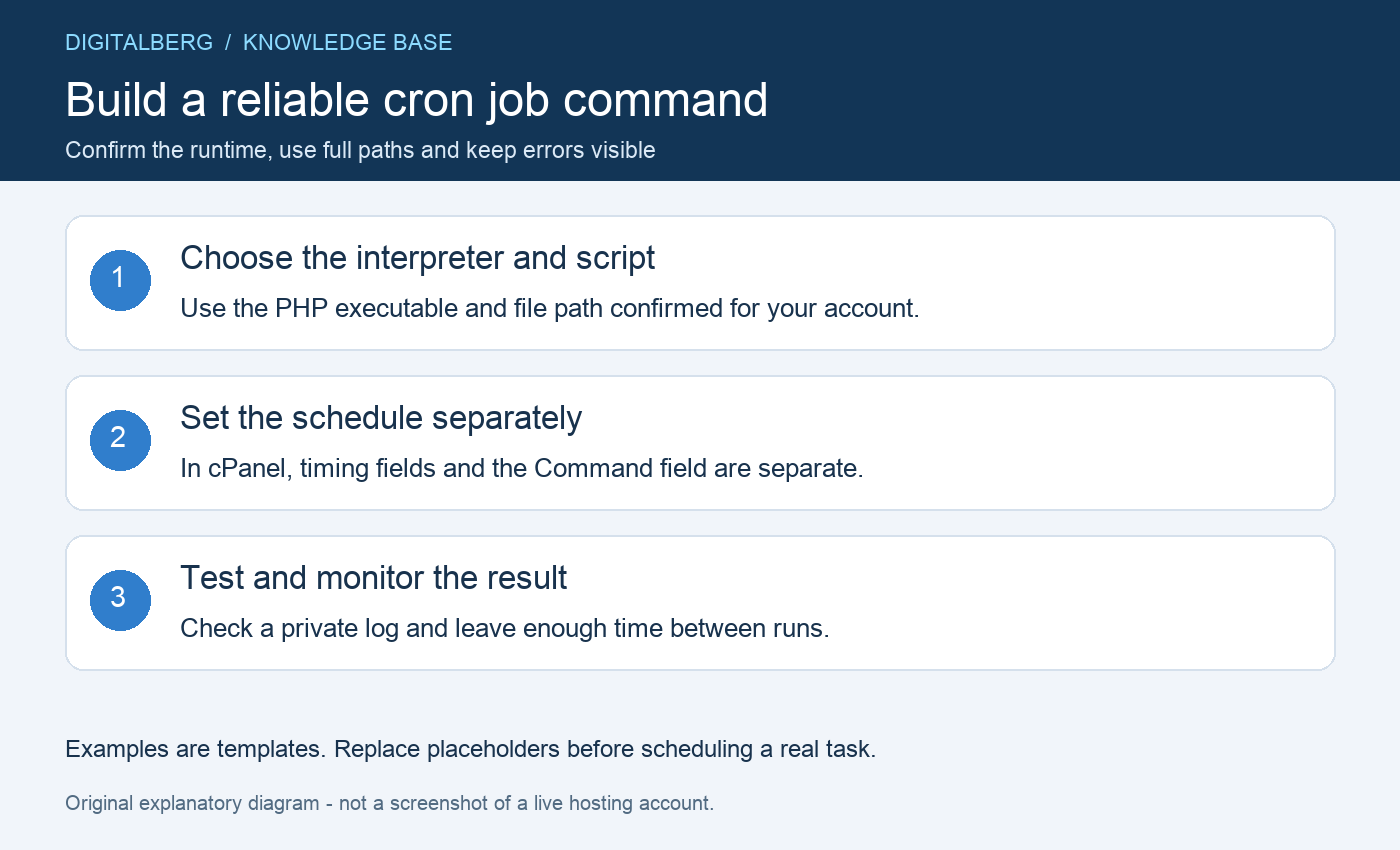
Identify the account’s actual home directory, the script’s absolute path and the interpreter required to run it. A home directory might use a different storage path from /home/ACCOUNT, so copy the confirmed location rather than guessing.
A file path such as /home/ACCOUNT/private-jobs/task.php is different from a URL such as https://example.com/task.php. A local PHP command runs a file through PHP; an HTTP client makes a request through the website.
Check that your plan includes scheduled tasks and that you have permission to run the application. Use the appropriate scheduler for other platforms; Windows normally uses Task Scheduler, and other Linux control panels may also support cron.
The basic pattern is the PHP executable followed by the script’s full path:
/PATH/TO/php /home/ACCOUNT/private-jobs/task.phpThis is a template. Replace /PATH/TO/php and ACCOUNT with the values for your server. Ask DigitalBerg which supported CLI PHP executable matches your application. Do not copy obsolete PHP 5.x executable paths from an old tutorial.
The website’s selected PHP version and command-line PHP can differ. Where SSH is available, check the chosen executable before scheduling:
/PATH/TO/php -v
/PATH/TO/php --ini
If the application genuinely needs a separate configuration file, PHP supports the -c option:
/PATH/TO/php -c /home/ACCOUNT/private-config/php.ini /home/ACCOUNT/private-jobs/task.phpUse this only with a valid configuration compatible with that runtime. The PHP command-line reference explains the options. Our PHP configuration guide covers the related hosting settings.
For a shell script, select the interpreter required by its author. A script written specifically for Bash may not run correctly under /bin/sh:
/bin/bash /home/ACCOUNT/private-jobs/task.shConfirm that Bash exists at that path and that the account can read the script. If the application expects a working directory, use its documented wrapper or a scoped command such as:
cd /home/ACCOUNT/application && /PATH/TO/php task.phpFor a task designed to be triggered over HTTPS, an example using curl is:
/usr/bin/curl --fail --silent --show-error --connect-timeout 15 --max-time 120 --output /dev/null 'https://example.com/scheduled-task'Confirm curl’s path, replace the URL and choose timeouts appropriate to the task. This example discards the response body while retaining error messages. It does not follow redirects automatically. Use the correct final HTTPS address and never disable certificate verification to conceal a connection error. See the curl manual for option details.
Open Advanced → Cron Jobs. Choose the timing values, then paste only the command into the Command field. The schedule is not part of that field.
| Example interval | Minute | Hour | Day | Month | Weekday |
|---|---|---|---|---|---|
| Every 15 minutes | */15 | * | * | * | * |
| Hourly, at minute 0 | 0 | * | * | * | * |
| Daily, at 02:30 | 30 | 2 | * | * | * |
These are examples, not recommended intervals for every application. Confirm the server’s scheduling timezone and any plan restrictions. The time displayed by your website may use a different timezone.
A complete user crontab line contains five timing fields followed by the command. cPanel already provides those fields separately. Consult the official cPanel Cron Jobs guide if your interface differs.
Create a private log directory outside your public document roots, then append output and errors to a suitable file:
/PATH/TO/php /home/ACCOUNT/private-jobs/task.php >> /home/ACCOUNT/private-logs/task.log 2>&1The directory must already exist and be writable by the account. The double greater-than sign appends normal output; 2>&1 sends errors to the same destination. Check the log after the scheduled run.
Logs can contain sensitive data and grow indefinitely. Restrict access, rotate or clean them under a retention plan, and avoid logging secrets. Cron email may help when configured, but a task with no output may generate no email. Silence alone is not proof of success.
A scheduled job cannot answer an interactive password prompt. Do not put database passwords directly in the cron job command or depend on mysql -p asking for input unattended.
Use the application’s supported private configuration or a restricted database-client option file with a least-privilege account. An option file may still contain a plaintext secret, so protect its permissions and location. See MySQL’s password security guidance. Never schedule a recurring database import as a routine backup task.
Leave enough time for a job to finish before the next run. For long tasks, use an application-supported lock or an administrator-reviewed locking method. Frequent duplicate runs can send repeated messages, process records twice or consume excessive resources.
Read the script’s purpose before running it manually: a test can send real email, charge an order or alter data. Use a staging environment or the application’s documented dry-run option for consequential tasks.
After saving the schedule, check the expected result as well as the log: a processed queue, generated report or application event. Keep one scheduler responsible for each task and review existing entries before adding another copy.
If it fails, check the interpreter path, script path, runtime version, working directory, permissions and quota. Cron has a smaller environment than an interactive terminal, so commands that rely on your shell profile may behave differently. Unescaped percent signs also have special meaning in standard cron command fields; use a documented wrapper for complicated shell logic.
Keep useful diagnostics until the task is reliable and monitored. Discarding both output and errors can hide failures. Suppressing email is a separate operational choice, not a repair for the underlying problem.
WordPress normally checks scheduled events through WP-Cron. If replacing traffic-triggered checks with a server scheduler, first configure and verify the external task, then follow the official WordPress procedure. Disabling the normal trigger before the replacement works can leave scheduled work unprocessed.
Contact DigitalBerg with the application name, intended script and a redacted error message. Use our configuration-file guide to locate relevant settings and our permissions guide when access is the problem. Never send passwords or complete files containing secrets.




 File Manager Uploads: 7 Easy, Essential cPanel Steps