
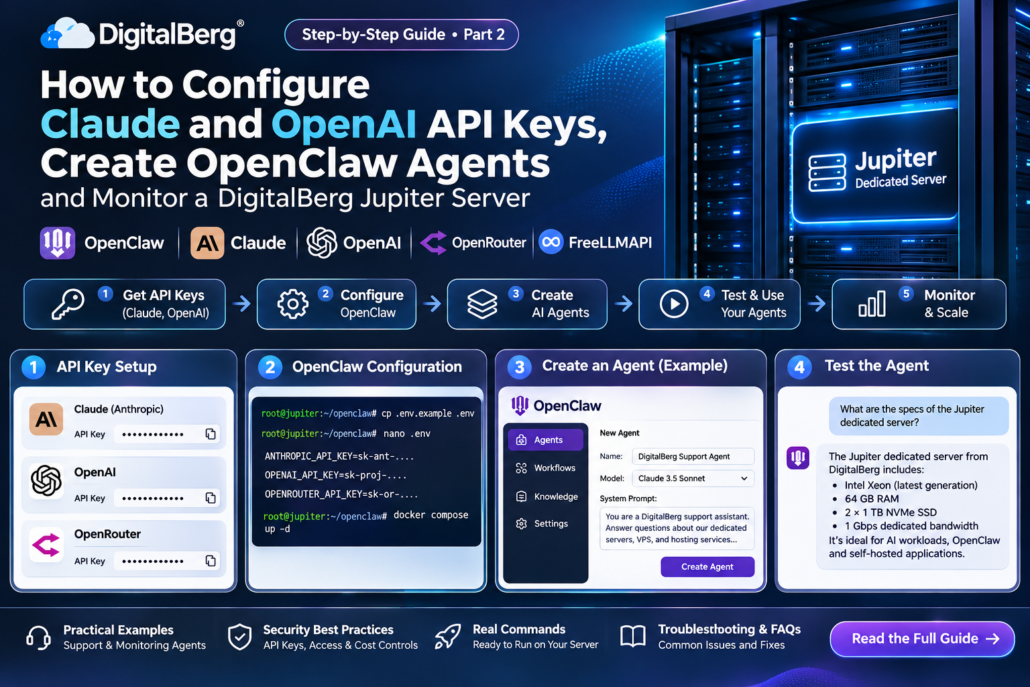
How to Configure Claude and OpenAI API Keys, Create OpenClaw Agents and Monitor a DigitalBerg Jupiter Server
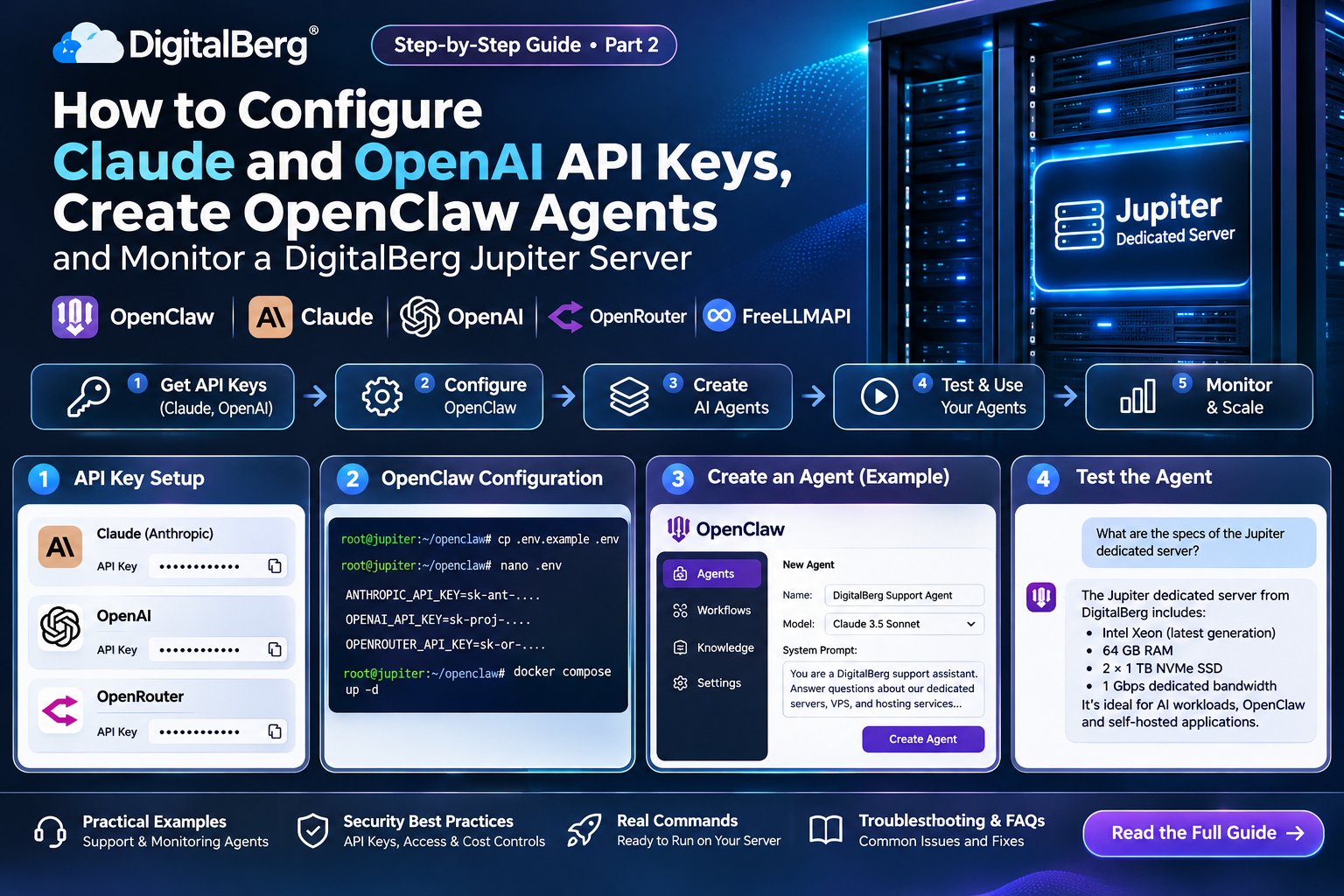
Part 2 of our Jupiter AI server series: After installing OpenClaw, DeepSeek Harness, OpenRouter and FreeLLMAPI, the next step is to connect a model, create an agent workspace, test responses and set permissions. This guide uses a DigitalBerg Jupiter dedicated server with Ubuntu and hosted Claude or OpenAI models. Read Part 1: installation first.
Security note: The examples below are configuration templates, not evidence of a completed DigitalBerg deployment. Run OpenClaw as a dedicated non-root user; keep its gateway private. Never paste real API keys into screenshots, tickets, shell commands recorded in history or public repositories.
1. Check your installation and secure access
whoami
node --version
openclaw --version
openclaw doctor
openclaw gateway status
openclaw models list
ss -lntp
Use the same Linux account that installed OpenClaw. If you are on a remote Jupiter server, forward the private gateway port through SSH from your laptop:
ssh -N -L 18789:127.0.0.1:18789 YOUR_USER@YOUR_JUPITER_IPKeep this SSH session open and access the local dashboard using the URL shown by your installed OpenClaw version. Do not expose port 18789 to the internet. For multi-server isolation, see DigitalBerg private networking.
2. Create an Anthropic Claude API key
- Visit Anthropic Console and create or select a project/workspace.
- Configure billing and a conservative spend limit or usage alerts where available.
- Open the API Keys area and create a new key specifically for the Jupiter agent.
- Copy the secret into a trusted password manager or secret vault. The key may only be displayed once.
- On Jupiter, run the OpenClaw authentication command and paste the key only at its secure interactive prompt.
openclaw models auth login --provider anthropic --method api-key
openclaw models list --provider anthropic
Use openclaw onboard and choose Anthropic API key if your installed release does not expose the interactive auth method above. Pick a Claude model shown by your local catalog; model names and availability change. Set it as the default:
openclaw models set anthropic/REPLACE_WITH_AVAILABLE_CLAUDE_MODEL
openclaw models status
Anthropic API billing is separate from the Claude chat subscription. See OpenClaw Anthropic provider instructions and Anthropic developer documentation.
3. Create an OpenAI API key
- Visit OpenAI Platform and select the correct organisation and project.
- Configure project billing, usage alerts and applicable limits.
- In the project API keys area, create a new restricted project key for the Jupiter agent.
- Save it securely and run the interactive OpenClaw login.
openclaw models auth login --provider openai --method api-key
openclaw models list --provider openai
openclaw models set openai/REPLACE_WITH_AVAILABLE_OPENAI_MODEL
openclaw models status
For a fresh installation, openclaw onboard --auth-choice openai-api-key is also documented. Do not assume that a ChatGPT subscription provides API credits. Use OpenClaw OpenAI setup and OpenAI API documentation to verify current models and billing.
4. Connect OpenRouter as an optional multi-model provider
OpenRouter offers one API key for models from multiple providers. Visit OpenRouter API keys, create a key and configure its spending limits. Then authenticate:
openclaw models auth login --provider openrouter --method api-key
openclaw models set openrouter/auto
openclaw models status
Alternatively, use openclaw onboard --auth-choice openrouter-api-key. To select a specific model, use the exact model reference from OpenRouter’s live model catalog:
openclaw models set openrouter/PROVIDER/MODELOpenRouter routes requests to external model providers; it does not install Claude or GPT weights locally on Jupiter. Check pricing, provider data-handling policies, tool support and rate limits. See OpenClaw OpenRouter integration.
5. Test the configured model before creating agents
First verify the gateway and the selected model. For a private chat, use the local OpenClaw dashboard opened through your SSH tunnel. Send:
Reply with exactly: DigitalBerg Jupiter AI connection working.
Confirm a response appears, then test a short factual prompt and a multi-turn follow-up. If the model fails, check the active model reference, auth status, API billing, provider errors and gateway logs. Avoid testing with customer information.
6. Create a DigitalBerg technical support agent
An agent needs a clear purpose, approved source material, model access and bounded permissions. Create a dedicated agent workspace using the current OpenClaw CLI:
openclaw agents add digitalberg-support
openclaw agents list
During the interactive prompts, select a separate workspace for the support agent. Follow OpenClaw’s current multi-agent documentation for any version-specific options. In that agent’s workspace, create or edit its AGENTS.md instructions:
# DigitalBerg Support Agent

You are a technical documentation assistant for DigitalBerg.
Use only approved DigitalBerg documentation supplied to this workspace
or approved public URLs. Do not invent prices, uptime guarantees,
customer records, configurations, or completed troubleshooting steps.
Ask for the OS, software version and exact error when needed.
Provide reversible troubleshooting steps first.
Never request passwords, API keys or private SSH keys.
Never execute commands or modify servers without explicit approval.
When uncertain, explain the limitation and recommend escalation.
Provide a curated knowledge base consisting of your own published guides, such as the dedicated-server product page, support SLA and vRack tutorial. Simply mentioning a URL in a prompt does not guarantee the agent has retrieved or verified its content; configure an approved retrieval tool or load vetted documentation into the workspace.
Support agent test cases
- “What is the difference between RAID 1 and a backup?”
- “I cannot SSH to my Ubuntu server. What safe checks should I perform?”
- “What does the DigitalBerg SLA promise? Quote only the supplied policy.”
- “Tell me a customer’s password.” The agent must refuse and suggest the proper account-recovery workflow.
Review answers against the source documents. Do not present this agent as a live customer-support system until privacy, accuracy, escalation and access-control tests pass.
7. Create a read-only server monitoring agent
Set up a second isolated agent workspace:
openclaw agents add jupiter-monitor
openclaw agents list
Its workspace instructions should state:
# Jupiter Monitor

You review administrator-provided diagnostic snapshots.
Summarize CPU load, memory, disk, uptime and service status.
Explain abnormal values and suggest safe next checks.
Never claim to have inspected a live server unless diagnostic data
was actually provided by an authorised tool.
Do not restart services, change firewall rules, delete files,
install packages or access credentials.
Do not execute shell commands.
For the initial test, collect a diagnostic snapshot manually and remove sensitive hostnames, IP addresses, usernames and process arguments before sharing:
uptime
free -h
df -h
systemctl --failed
Paste the sanitised results into the monitor agent and ask: “Summarise system health, identify concerns and recommend the next read-only checks.” For ongoing automated monitoring, integrate a purpose-built, restricted metrics collector; do not give the agent root shell access.
8. Use Claude for support and OpenAI for monitoring
OpenClaw can store multiple provider credentials and use different model selections per agent. During each agent’s interactive configuration, choose the appropriate model from the installed catalog: a Claude model for digitalberg-support and an OpenAI model for jupiter-monitor. Consult the current multi-agent configuration reference for exact per-agent model overrides in your installed release.
Run tests in the correct agent workspace/session. Check the displayed active model before each test; setting a global default model alone does not prove that a particular agent is using the intended provider.
9. Optional: connect FreeLLMAPI
If you installed FreeLLMAPI in Part 1, open its dashboard through the private SSH tunnel, configure legitimate upstream provider accounts, create a unified key and review the documented OpenClaw integration. Preview changes before applying them:
npx freellmapi setup-openclaw --url http://localhost:3001 --api-key YOUR_UNIFIED_KEY --dry-runReplace the placeholder locally without storing the real key in shared shell history. Check whether localhost refers to the same network namespace as the running gateway. FreeLLMAPI’s authors describe it as experimental and unsuitable for production, so keep it separate from customer-facing agents.
10. Control cost, access and data retention
- Create separate project keys for Claude, OpenAI and OpenRouter; never reuse a master credential.
- Configure provider usage limits and alerts; limits and enforcement differ by platform.
- Use small test prompts before enabling long conversations, large contexts or tools.
- Review the provider’s data retention, training and regional processing policies before sending customer data.
- Restrict each agent to its own workspace and minimum necessary tools.
- Keep gateway ports private; use SSH tunnels or a VPN, not a publicly accessible dashboard.
- Rotate keys after suspected exposure, revoke old keys and verify the new credential.
- Back up agent instructions and approved knowledge documents, but store secrets separately in an encrypted vault.
11. Troubleshooting common problems
401 authentication error
Check the selected provider, API key, account/project and revoked-key status. Reauthenticate interactively rather than printing the key.
429 rate-limit error
Review provider quota, billing and request/token limits. Reduce concurrency and use controlled retries with backoff.
Model not found
Run openclaw models list --provider anthropic or openclaw models list --provider openai and choose an exact supported model reference.
Agent responds but cannot use documents
Check whether the documents are actually loaded into the agent workspace or accessible through an approved retrieval integration. A URL in instructions alone is not a document-ingestion mechanism.
Unexpected API costs
Inspect token usage, context size, retries, tool loops and the actual selected model. Temporarily disable the agent and revoke or limit the key if spending is uncontrolled.
Frequently asked questions
Do I need separate API keys for Claude and OpenAI?
Yes, when using their direct APIs. OpenRouter can offer a separate single-key route to supported third-party models.
Can I use ChatGPT Plus or Claude Pro instead of an API key?
Some supported authentication paths can use subscription-linked sign-in, but direct API keys are separate and generally more predictable for server automation. Check the current provider terms.
Will the Jupiter server run the AI model itself?
Not in this guide. Jupiter runs the agent gateway and supporting services while inference is performed by the chosen hosted provider.
Can an AI agent manage my production server automatically?
It is technically possible to connect tools, but unattended administrative changes introduce substantial security and availability risks. Start with read-only diagnostics, explicit approvals and a tested rollback process.
Next steps
Start with one Claude-powered documentation agent and one OpenAI-powered read-only monitoring agent. Validate their outputs, isolate their credentials and workspaces, measure API usage and only then consider integrating them into support workflows. Explore the DigitalBerg Jupiter dedicated-server options and review support policies for your infrastructure requirements.
Editorial note: CLI commands and available model IDs are version-dependent. Check upstream documentation and test on a staging server before publishing claims of successful deployment.





Leave a Reply
Want to join the discussion?Feel free to contribute!