Imagine updating your website one morning and discovering that several important pages have disappeared. Or logging into your server to find that a software update has caused an application to stop working. Read more
https://digitalberg.com/wp-content/uploads/2026/10/Website-Backup-vs-Server-Snapshot.png9411672Shah Qhttps://www.digitalberg.com/wp-content/uploads/2015/04/DigitalBerg-Logo-grey-small-300x92.pngShah Q2026-10-26 11:44:472026-10-26 11:44:47Website Backup vs Server Snapshot: What’s the Difference and Which One Do You Need?
Last verified: 23 October 2026. PHP2Shell is the name used for two critical PHP runtime vulnerabilities, CVE-2026-109618 and CVE-2026-109619. If you operate a PHP website, your immediate task is to identify the runtime serving it, install a fixed build and verify that the running workers have restarted. Updating WordPress alone does not replace this work.
This guide separates confirmed technical findings, dated attack observations and provider-specific claims. It also includes PHP’s 23 October follow-up advice, which matters even after the initial emergency update. Read more
A slow website, frequent resource limits or unreliable application performance can create unnecessary problems for a growing business. Shared hosting may be sufficient when a website first launches, but as traffic increases and applications become more demanding, a more flexible hosting environment may become necessary.
Artificial intelligence is changing how businesses choose hosting infrastructure. From customer-service chatbots and AI agents to private language models and automated document processing, organisations increasingly need servers that can support AI workloads.
Should you use an AI VPS or GPU dedicated server? The answer depends on model size, RAM and VRAM, inference latency, concurrent users, security requirements and budget. An AI VPS can be an economical starting point for smaller models and application backends. A GPU dedicated server is more appropriate for demanding accelerated inference and high-throughput workloads. Read more
https://digitalberg.com/wp-content/uploads/2026/10/Screenshot-2026-10-21-at-00.42.07.png8101525Digital Berghttps://www.digitalberg.com/wp-content/uploads/2015/04/DigitalBerg-Logo-grey-small-300x92.pngDigital Berg2026-10-20 23:46:162026-10-20 23:46:16AI VPS vs GPU Dedicated Server: Which Is Best in 2026?
Updated October 2026. AI workloads, infrastructure cost reviews, and storage performance and security are changing how organisations evaluate dedicated servers and bare-metal hosting. This technical guide explains ten important developments, the workloads behind them and what buyers should verify before committing to a server.
Quick answer: Key dedicated server trends in 2026 include GPU hosting, private AI infrastructure, AMD EPYC processors, cost-optimised bare metal, NVMe storage, 10Gbps networking, private cloud, self-hosted LLMs, DDoS protection, and UK/European data-centre requirements.
https://digitalberg.com/wp-content/uploads/2026/10/Top-10-Dedicated-servers.png9411672Digital Berghttps://www.digitalberg.com/wp-content/uploads/2015/04/DigitalBerg-Logo-grey-small-300x92.pngDigital Berg2026-10-20 12:39:512026-10-20 12:39:51Top 10 Dedicated Server & Bare Metal Hosting Trends in 2026
A growing business does not always need a bigger server. Sometimes it needs a better hosting plan, a faster website or someone to fix the problem that is slowing everything down.
However, there comes a point when your website or application needs resources and control that your current hosting cannot provide comfortably.
https://digitalberg.com/wp-content/uploads/2026/10/Dedicated-Server-Hosting-for-UK-Small-Businesses.png9411672Shah Qhttps://www.digitalberg.com/wp-content/uploads/2015/04/DigitalBerg-Logo-grey-small-300x92.pngShah Q2026-10-19 07:23:582026-10-19 07:26:49Dedicated Server Hosting UK for Small Businesses: When Is It Worth It?
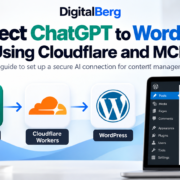
ChatGPT WordPress integration lets an authorised AI assistant securely read posts, create drafts and update supported SEO metadata. This guide covers our Cloudflare Workers experiment and the WordPress MCP plugin setup that worked for DigitalBerg.
Updated guide: This tutorial documents DigitalBerg’s real-world experiment with a custom Cloudflare Worker MCP endpoint and the WordPress MCP plugin that ultimately connected successfully to ChatGPT. Cloudflare Workers is an optional custom route; you do not need both approaches. Want ChatGPT to list your WordPress posts, create drafts, or improve Rank Math SEO? We recently connected our own DigitalBerg WordPress website to ChatGPT and tested those workflows. Below is the complete setup, including the Cloudflare Worker approach, its authentication limitation, and the simpler plugin route that worked for us. Read more
https://digitalberg.com/wp-content/uploads/2026/10/chatgpt-wordpress-cloudflare-mcp-featured-image.png9411672Digital Berghttps://www.digitalberg.com/wp-content/uploads/2015/04/DigitalBerg-Logo-grey-small-300x92.pngDigital Berg2026-10-18 17:52:002026-10-18 22:10:34How to Connect ChatGPT to WordPress Using Cloudflare and MCP
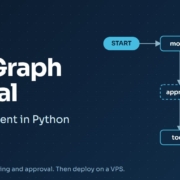
Most AI demos stop at a single prompt and a single answer. Real agents need more. They have to remember earlier messages, decide when to use a tool, and sometimes wait for a person to approve an action before they carry on.
LangGraph is a Python framework built for exactly this. In this LangGraph tutorial, you will build a small AI agent step by step. It will use tools, remember conversations, stream its replies and pause for human approval. At the end, you will deploy it on an Ubuntu VPS so it keeps running after you close your laptop.
What You Will Build
By the end of this guide, you will have an agent that:
https://digitalberg.com/wp-content/uploads/2026/10/LangGraph-AI-agent-workflow-deployed-on-a-VPS.jpeg5871187Shah Qhttps://www.digitalberg.com/wp-content/uploads/2015/04/DigitalBerg-Logo-grey-small-300x92.pngShah Q2026-10-16 12:06:402026-10-18 17:13:45LangGraph Tutorial: How to Build an AI Agent in Python
Your team needs a shared place for conversations, files and work with AI agents. You also want control over the server that runs it. Self-hosting Buzz on a VPS gives you that infrastructure control, provided you are ready to manage updates, access and backups.
This guide explains how to install Buzz by Block using its Docker Compose deployment bundle, connect a domain, enable HTTPS and add team members. It is written for a fresh Ubuntu VPS with administrator access. Buzz is still evolving, so begin with a small pilot and check the current project documentation before using it for critical work.
https://digitalberg.com/wp-content/uploads/2026/10/install-Buzz-on-a-VPS.png10241536Shah Qhttps://www.digitalberg.com/wp-content/uploads/2015/04/DigitalBerg-Logo-grey-small-300x92.pngShah Q2026-10-14 10:27:332026-10-14 10:27:33How to Install Buzz on a VPS for Your Team
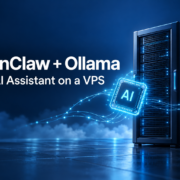
An AI assistant becomes more useful when it can work with your files, follow a repeatable process and remain available after you close your laptop. Running OpenClaw with Ollama on a VPS gives you a way to build that setup on infrastructure you control.
https://digitalberg.com/wp-content/uploads/2026/10/OpenClaw-Ollama-on-VPS.png10241536Shah Qhttps://www.digitalberg.com/wp-content/uploads/2015/04/DigitalBerg-Logo-grey-small-300x92.pngShah Q2026-10-10 17:32:432026-10-11 08:47:55OpenClaw with Ollama on a VPS: Build Your Own AI Assistant