
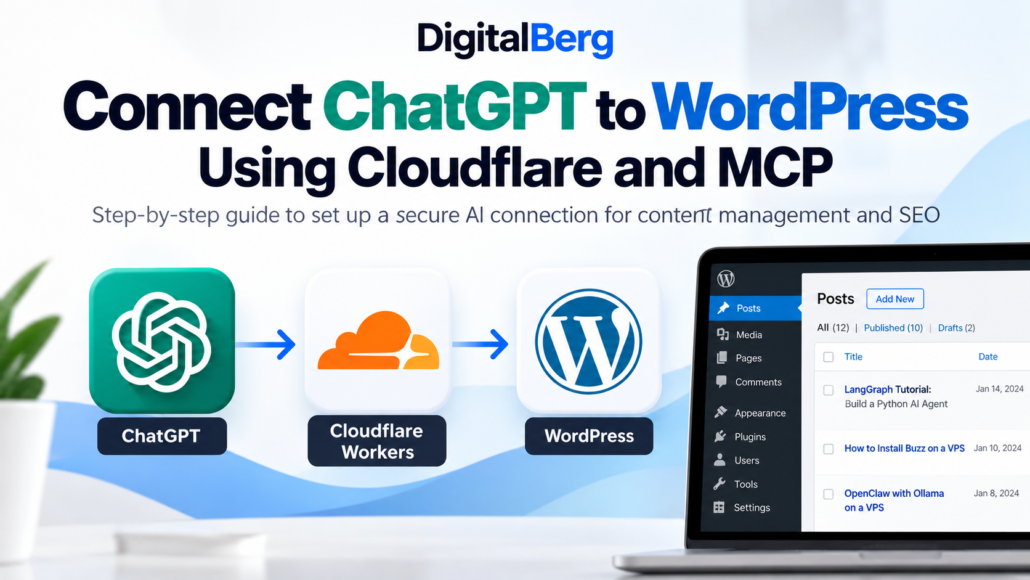
How to Connect ChatGPT to WordPress Using Cloudflare and MCP
ChatGPT WordPress integration lets an authorised AI assistant securely read posts, create drafts and update supported SEO metadata. This guide covers our Cloudflare Workers experiment and the WordPress MCP plugin setup that worked for DigitalBerg.
Updated guide: This tutorial documents DigitalBerg’s real-world experiment with a custom Cloudflare Worker MCP endpoint and the WordPress MCP plugin that ultimately connected successfully to ChatGPT. Cloudflare Workers is an optional custom route; you do not need both approaches. Want ChatGPT to list your WordPress posts, create drafts, or improve Rank Math SEO? We recently connected our own DigitalBerg WordPress website to ChatGPT and tested those workflows. Below is the complete setup, including the Cloudflare Worker approach, its authentication limitation, and the simpler plugin route that worked for us.
What you’ll build
- A secure way for ChatGPT to discover WordPress tools through the Model Context Protocol (MCP).
- Read access to posts and pages, with optional write access for drafts and SEO.
- Optional Cloudflare Worker infrastructure for a custom MCP endpoint.
- A practical workflow for reviewing and improving Rank Math SEO metadata.
Architecture: two possible routes
| Custom route | Plugin route (used for our working connection) |
|---|---|
| ChatGPT → compatible MCP authentication → Cloudflare Worker → WordPress REST API | ChatGPT → WordPress MCP plugin with OAuth → WordPress tools / Rank Math |
Before you begin
- Administrator access to your WordPress dashboard for installing and configuring plugins.
- A ChatGPT account that can connect to a custom MCP server.
- For the custom route: a Cloudflare account and a dedicated WordPress integration user.
- HTTPS enabled on your WordPress site and a current backup.
Part A: Configure WordPress REST API access
Step 1: Confirm that the REST API works
Open https://yourdomain.com/wp-json/ and https://yourdomain.com/wp-json/wp/v2/posts in your browser. The second endpoint should return public posts as JSON. A public posts response does not grant permission to edit anything.
Step 2: Create a dedicated WordPress account
In WordPress, open Users → Add New. Create an integration user and assign the least-privileged role that supports the tasks you need. An Editor can be appropriate for content workflows; avoid using your main Administrator login for routine automation.
Step 3: Generate a WordPress application password
Open the integration user’s profile, find Application Passwords, create a descriptive password, and save it in a password manager. Never paste it into a blog post, screenshot, code repository, or chat.
Part B: Set up a custom Cloudflare Worker MCP endpoint
This is the custom route we explored first. It is useful for developers who need their own tool logic, but it requires a proper MCP implementation and client-compatible authentication. Our initial bearer-token Worker was useful for testing, but it didn’t provide the OAuth flow required by the ChatGPT custom MCP connection screen.
Step 4: Create your Cloudflare Worker
- Sign in to your Cloudflare dashboard.
- Open Workers & Pages.
- Choose Create and start with a simple Worker template (such as Hello World).
- Name the Worker, deploy it, and open its settings.
- Keep the Worker URL private until access controls are configured.
Step 5: Add variables and secrets
Under the Worker’s settings, configure the following values. Treat credentials and tokens as secrets, not ordinary visible variables.
| Name | Purpose | Recommended storage |
|---|---|---|
WP_URL |
HTTPS WordPress site address | Variable |
WP_USERNAME |
Dedicated integration username | Secret |
WP_APP_PASSWORD |
WordPress application password | Secret |
MCP_API_TOKEN |
Token used in our initial test endpoint | Secret |
Do not publish real token values. Rotate any secret that was accidentally exposed in a screenshot or log.
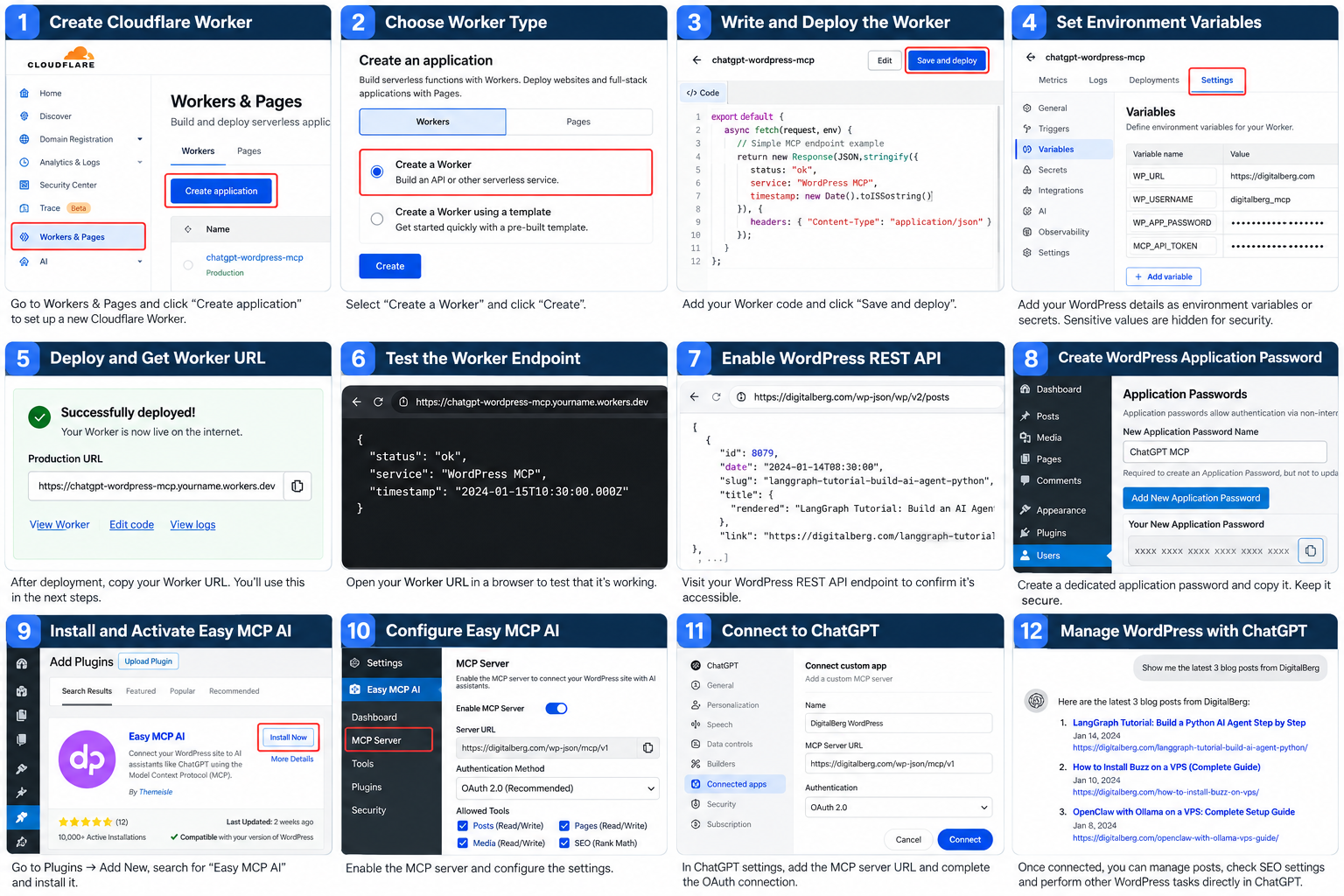
Step 6: Implement the Worker
A production-ready Worker must do more than proxy HTTP requests. It should expose a supported remote MCP transport, handle JSON-RPC methods such as initialize, tools/list, and tools/call, validate inputs, enforce permissions, and safely call WordPress REST API endpoints. It also needs authentication compatible with the intended MCP client. For example, a read-only WordPress tool can request /wp-json/wp/v2/posts?per_page=3. Write operations should validate the target post and the authorised WordPress user’s capabilities before updating anything. Important: A simple Worker protected only by a static bearer token is not automatically an OAuth-enabled MCP server. Do not remove authentication to make the endpoint connect. Use a supported OAuth implementation or choose a compatible WordPress MCP plugin instead.
Step 7: Test the Worker safely
First test a harmless health endpoint. Next, test a valid MCP JSON-RPC request with a trusted API client. For example, a tool discovery request may look like:
{
  "jsonrpc": "2.0",
  "id": 1,
  "method": "tools/list",
  "params": {}
}
Only test protected endpoints with credentials stored outside shared screenshots. Verify that unauthenticated requests fail and that write tools cannot exceed the integration user’s WordPress permissions.
Step 8: Understand the ChatGPT OAuth requirement
In our setup, the ChatGPT custom MCP connection screen offered OAuth and unauthenticated connection choices, but no place to provide our Worker’s static bearer token. As a result, we did not treat the initial Worker as a finished ChatGPT integration. We moved to a WordPress MCP plugin that supplied a compatible authorisation flow.
Part C: Connect ChatGPT with a WordPress MCP plugin
Step 9: Install Easy MCP AI
- In WordPress, open Plugins → Add New.
- Search for Easy MCP AI by Themeisle.
- Install and activate it.
- Open the plugin settings and configure its MCP server.
- Enable only the tools and permissions you intend to use.
- Copy the exact MCP endpoint URL displayed in the plugin; do not guess the path.
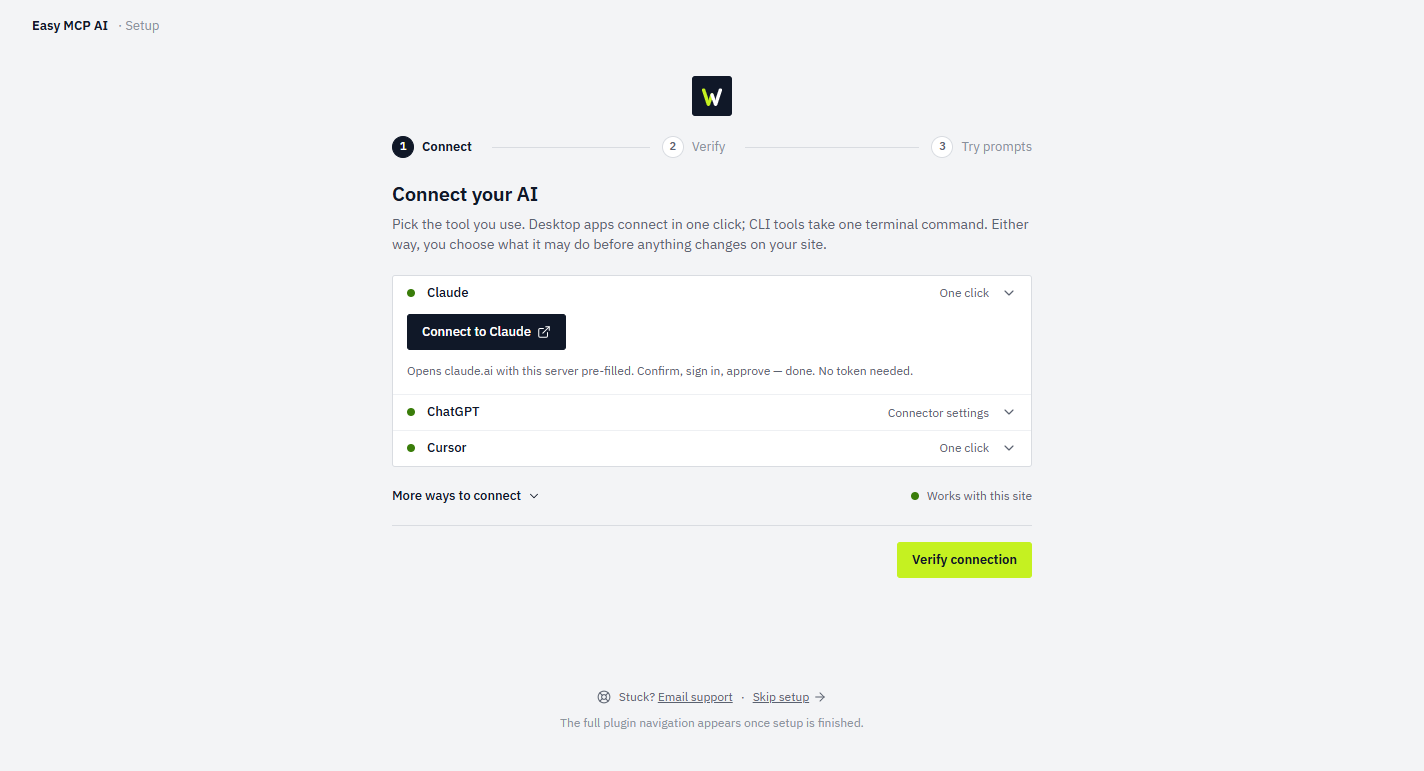
Step 10: Authorise the MCP connection in ChatGPT
- Open ChatGPT settings and the available custom MCP/plugin connection interface.
- Add a custom MCP server.
- Enter a clear name, such as DigitalBerg WordPress.
- Paste the plugin-provided MCP server URL.
- Select the authentication flow supported by the plugin, complete authorisation, and approve only the necessary permissions.
- Test with a read-only request such as “Show my three most recent WordPress posts.”
Interface labels and availability can vary by ChatGPT plan and product version.
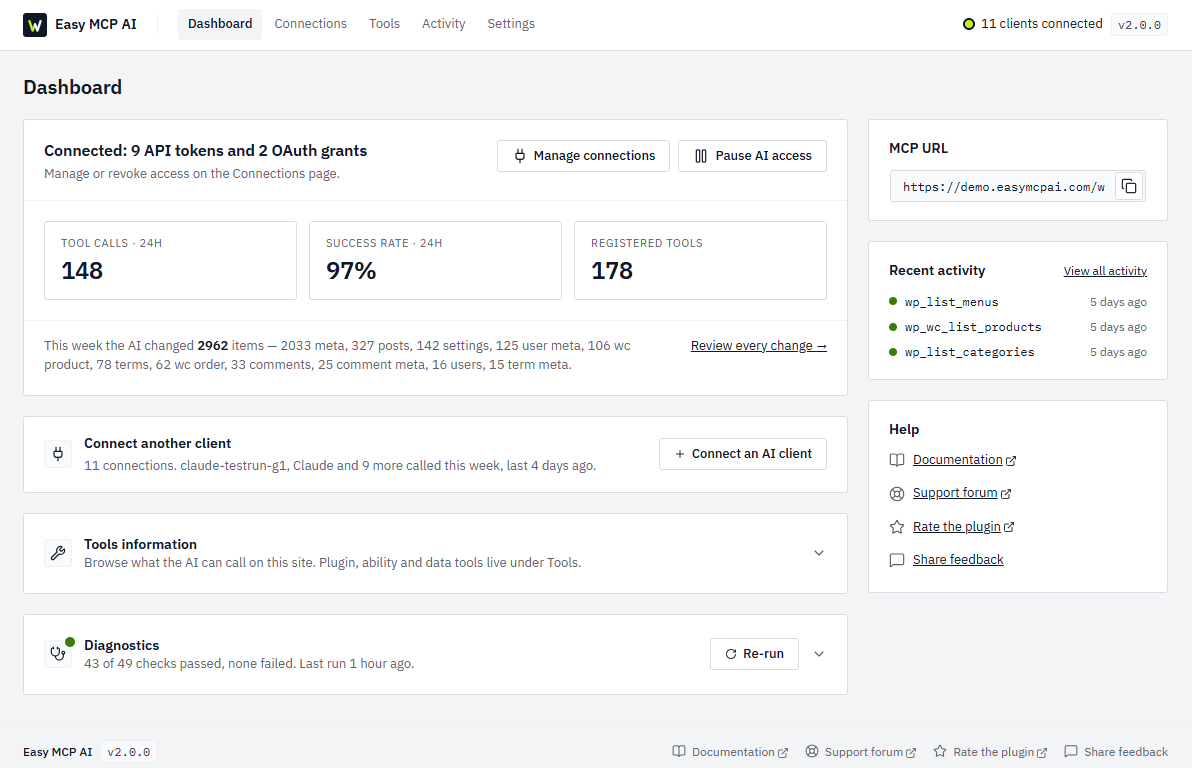
Part D: Enable Rank Math SEO tools
Step 11: Enable the Rank Math integration
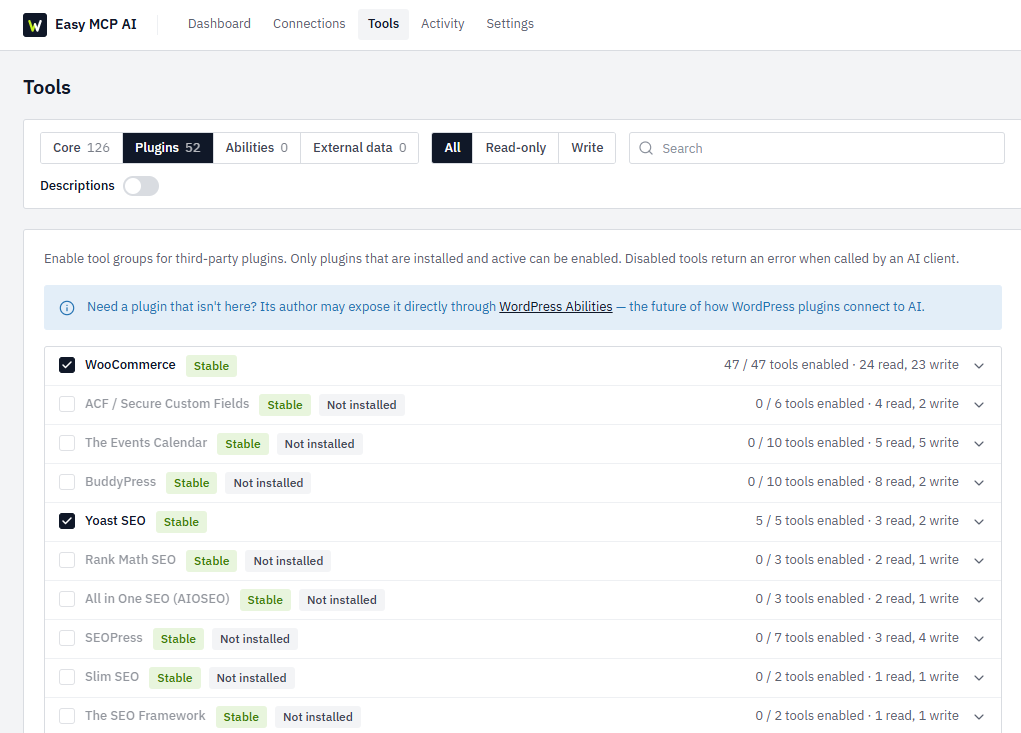
In WordPress, open Easy MCP AI → Tools → Plugins and enable the Rank Math SEO integration. Save the settings. Without that integration, the MCP connection may read SEO metadata but reject write operations.
Step 12: Review and update SEO metadata
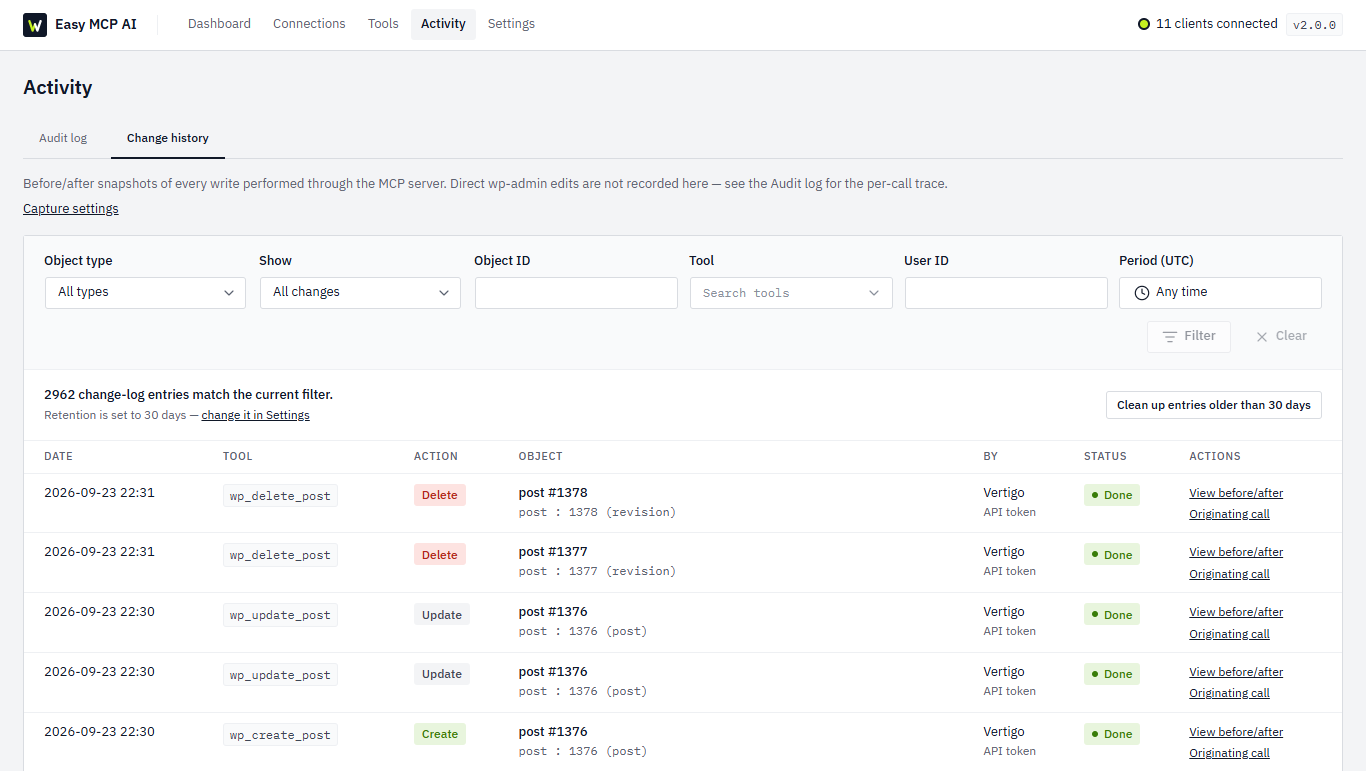
We tested our connection on a published DigitalBerg LangGraph tutorial. ChatGPT retrieved its focus keyword, title, meta description, canonical URL, robots settings, social metadata and saved Rank Math score. We then updated the SEO title and descriptions through the integration and read them back to verify the changes. At the time of that test, our article’s saved Rank Math score was 81/100. The score didn’t change immediately after the metadata updates; Rank Math’s editor may need to recalculate it. A plugin score is not a guarantee of search rankings.
Cloudflare Worker or WordPress plugin: which is better?
| Consideration | Cloudflare Worker | WordPress MCP plugin |
|---|---|---|
| Setup effort | More development work | Usually quicker |
| Custom tools | Highly flexible | Depends on exposed tools |
| OAuth compatibility | Must be implemented and tested | May be provided by the plugin |
| WordPress integrations | Custom implementation required | May include SEO and content tools |
| Best use | Specialized integrations | Routine WordPress administration |
Security checklist
- Use HTTPS and OAuth or another authentication method supported by the MCP client.
- Grant the smallest possible WordPress role and MCP tool permissions.
- Prefer draft creation and human review before publication.
- Never publish passwords, tokens, or authorisation headers in screenshots.
- Keep WordPress, plugins and Workers updated, and maintain backups.
- Once the plugin replaces a custom Worker, disable the unused endpoint and revoke its old WordPress application password.
Frequently asked questions
Do I need Cloudflare to connect ChatGPT to WordPress?
No. Cloudflare Workers is an optional custom MCP hosting approach. A compatible WordPress MCP plugin can provide the connection directly.
Can ChatGPT edit posts and Rank Math metadata?
Yes, if the MCP server exposes those tools and the authenticated user has the appropriate permissions. We verified post retrieval and Rank Math metadata updates on our own site.
Can I use this without Jetpack AI?
Yes. A separate MCP integration can connect WordPress to ChatGPT without a paid Jetpack AI plan. Other hosting, plugin or AI subscription costs may still apply.
Is a static bearer-token Worker enough?
Not necessarily. Your ChatGPT MCP client and server must agree on a supported authentication method. Our initial bearer-token endpoint did not provide the required OAuth flow.
Does Rank Math guarantee higher Google rankings?
No. Rank Math can help you review metadata and on-page SEO, but useful content, search intent and technical quality still matter.
Final thoughts
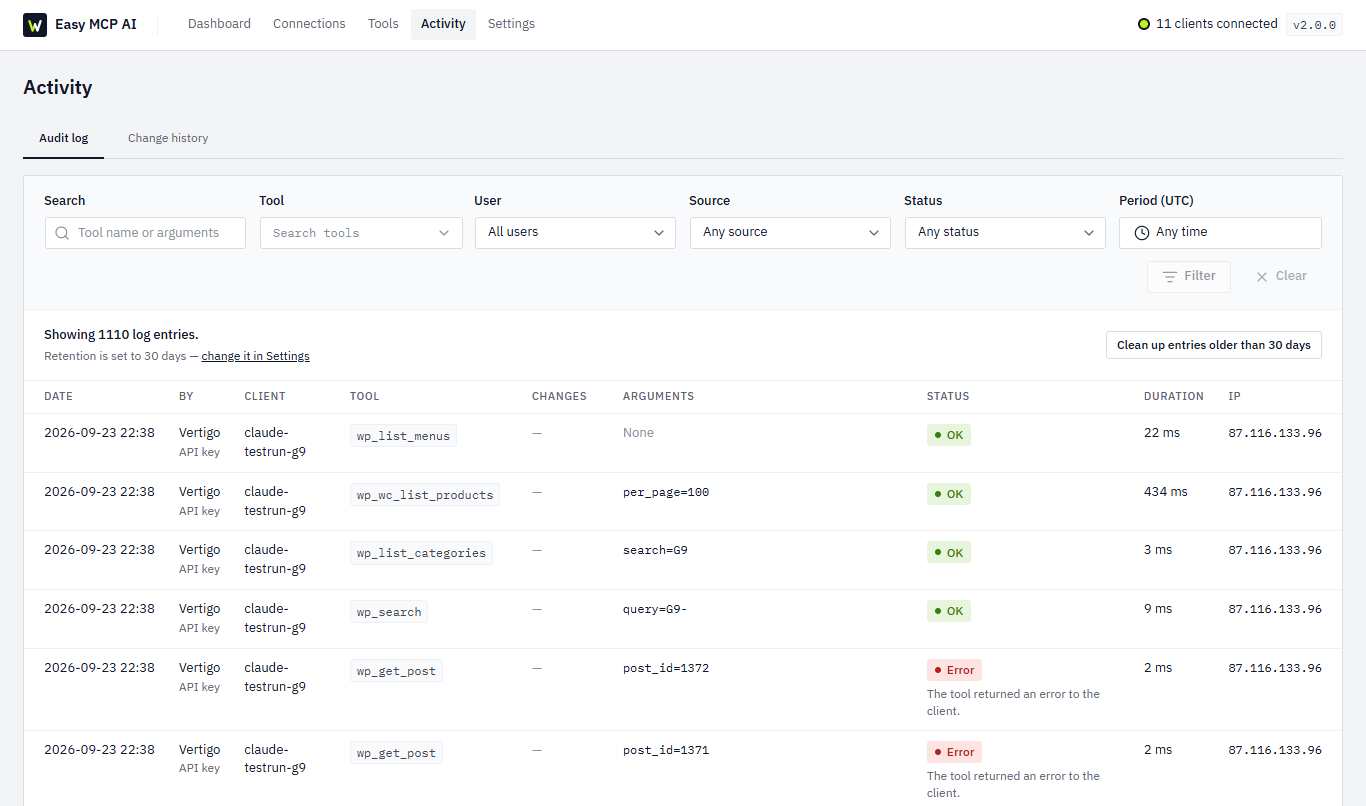
At DigitalBerg, this project showed us how ChatGPT can help with practical WordPress administration. We first built and tested a Cloudflare Worker as a custom MCP endpoint, then used a dedicated WordPress MCP plugin to complete the ChatGPT connection. Afterward, we could retrieve posts and update Rank Math metadata through conversational instructions. If you are experimenting with AI agents or automation services, explore our VPS hosting options, our LangGraph AI agent tutorial, and our guide to setting up an Ubuntu VPS. Image note: Easy MCP AI images are authentic screenshots published by the plugin developer, used as illustrative examples. Cloudflare and ChatGPT account-specific screenshots are not included because they require access to the corresponding dashboard and must not expose private credentials. Screens may differ by version.
Official documentation and further reading
For the latest setup screens and supported options, see the official Cloudflare Workers documentation, WordPress REST API documentation, and Model Context Protocol documentation. These resources are updated as the products evolve.
Expert guide: production-ready WordPress MCP architecture
A working MCP connection is the beginning of an integration, not its security boundary. For business use, define which WordPress actions the assistant is allowed to perform, who can authorise them, and how changes are reviewed.
Design an authentication and authorisation boundary
For a remote MCP server, use a supported authorisation flow with proper token validation. Validate the token’s intended audience, expiry and permissions on every protected request. Do not treat a shared bearer string or a WordPress application password as a substitute for the OAuth flow the MCP client requires. When the MCP service calls the WordPress REST API, map each operation to a dedicated WordPress account with the minimum role and capabilities needed.
Separate read-only tools from tools that create, edit, publish or delete content. Require human approval for sensitive actions, especially publishing, deletion, user management and site configuration. Validate post IDs, permitted fields and URL inputs to avoid accidental or unauthorised modifications.
Protect Cloudflare Workers and WordPress credentials
Keep WordPress application passwords and service tokens in Cloudflare Worker secrets rather than source code or visible logs. Use HTTPS, restrict inbound origins where appropriate, validate JSON-RPC payloads, and enforce timeouts, request-size limits and rate limits. Log tool names, timestamps and outcomes while redacting tokens, passwords and personal data. Rotate credentials and revoke unused access after migrating between implementations.
Plan for reliability and recoverability
Before enabling write tools, test failures such as an expired OAuth token, WordPress REST API downtime, a 429 rate limit, and a partially completed update. Prefer idempotent operations where possible, retain WordPress revisions, and maintain tested backups. For larger installations, monitor Worker errors, WordPress application logs, and unusual administrative changes.
Choose the right hosting architecture
Cloudflare Workers suit lightweight event-driven endpoints. A VPS may be preferable when you need persistent processes, scheduled workers, custom runtimes, databases or private network services. Dedicated servers may be appropriate when a workload needs exclusive physical resources, specialised configuration or predictable capacity. Choose based on workload and operational needs, not just the presence of AI features.
Expert troubleshooting: ChatGPT, Cloudflare and WordPress MCP
| Symptom | Likely cause | What to check |
|---|---|---|
| ChatGPT cannot connect | Transport or authentication mismatch | Confirm the remote MCP endpoint and the OAuth flow supported by the client. |
| HTTP 401 Unauthorised | Missing, invalid or expired credentials | Check token issuance, audience, expiry and server validation; do not expose tokens in logs. |
| HTTP 403 Forbidden | Insufficient WordPress capabilities | Verify the integration user’s role and whether the specific MCP tool is enabled. |
| HTTP 404 Not Found | Incorrect REST or MCP route | Check the exact endpoint URL and WordPress REST API availability. |
| Tools are missing | Tool discovery or plugin configuration issue | Review enabled abilities and test the MCP tools/list response. |
| Rank Math updates fail | SEO integration or write permissions disabled | Enable Easy MCP AI → Tools → Plugins → Rank Math, then verify saved metadata. |
| Worker HTTP 500 | Runtime exception or missing secret | Inspect redacted Worker logs and check environment bindings. |
| SEO score does not update | Editor-side score has not recalculated | Open the post in Rank Math and rerun the editor’s SEO analysis. |
Host your AI automation with DigitalBerg
Building an MCP server, AI agent or WordPress automation workflow? DigitalBerg offers infrastructure for developers and businesses. Select a plan based on the resources, support level and software-management responsibilities your project requires.
DigitalBerg VPS Hosting
Explore virtual private servers for Python and Node.js applications, development environments, WordPress sites and self-hosted automation services.
DigitalBerg Dedicated Servers
Need dedicated hardware for larger applications, high-traffic websites or infrastructure you manage directly? Compare dedicated server options and configurations.
View Dedicated Servers → Browse Dedicated Server Ordering Options →
Explore our technology ecosystem
Bergix Group brings together businesses working across technology and related services. Visit OVHSAS for dedicated-server infrastructure offerings, or browse DigitalBerg for VPS, dedicated servers and hosting services.
Share this post
Found this technical guide helpful? Share it with your WordPress team, developers or colleagues.
Follow DigitalBerg
For updates about cloud infrastructure, WordPress hosting, AI automation and technical tutorials, follow DigitalBerg on LinkedIn.






Leave a Reply
Want to join the discussion?Feel free to contribute!