
LangGraph Tutorial: How to Build an AI Agent in Python
1 CommentMost AI demos stop at a single prompt and a single answer. Real agents need more. They have to remember earlier messages, decide when to use a tool, and sometimes wait for a person to approve an action before they carry on.
LangGraph is a Python framework built for exactly this. In this LangGraph tutorial, you will build a small AI agent step by step. It will use tools, remember conversations, stream its replies and pause for human approval. At the end, you will deploy it on an Ubuntu VPS so it keeps running after you close your laptop.
What You Will Build
By the end of this guide, you will have an agent that:
- Answers general questions directly
- Calls a Python tool when a question needs one
- Remembers each conversation using a thread ID
- Streams its output while it is being generated
- Asks for approval before running a tool
- Runs as a background service behind a small API
What Is LangGraph?
LangGraph is an open-source Python framework from the LangChain team. It lets you describe an agent as a graph:
- State is the shared data (such as the conversation) that every step can read and update.
- Nodes are Python functions that do the work, such as calling a model or running a tool.
- Edges decide which node runs next. They can be fixed or conditional.
Because a graph can loop back to an earlier node, your agent can think, use a tool, read the result and think again until it has a final answer. That loop is the core idea behind most agentic AI systems.
LangGraph vs LangChain
LangChain gives you high-level building blocks and ready-made agent patterns. LangGraph gives you lower-level control over routing, loops, saved state and pauses for human review. They work well together, and LangChain’s model and tool integrations plug straight into LangGraph.
If one prompt and one response solve your problem, call the model API directly. Reach for LangGraph when your workflow needs to branch, loop, remember or wait.
Prerequisites
- Python 3.10 or later
- An API key for a chat model (this guide uses OpenAI, but any LangChain-supported provider works)
- A terminal and a code editor
- For deployment: an Ubuntu VPS with SSH access
Step 1: Set Up the Project
Create a project folder and a virtual environment so the packages stay isolated from your other projects:
mkdir langgraph-agent && cd langgraph-agent
python3 -m venv .venv
source .venv/bin/activate
pip install --upgrade pip
Install the packages:
pip install langgraph langchain-core langchain-openai python-dotenvStore your API key in a .env file, and keep it out of Git:
echo "OPENAI_API_KEY=your-api-key" > .env
printf ".venv/\n.env\n__pycache__/\n*.sqlite\n" > .gitignore
Once everything works, run pip freeze and pin the versions in requirements.txt. That way you can rebuild the same environment on your server later.
Step 2: Define the Agent State
State is the memory of a single run. For a chat agent, one field is enough: the list of messages.
from typing import Annotated
from typing_extensions import TypedDict
from langchain_core.messages import AnyMessage
from langgraph.graph.message import add_messages

class AgentState(TypedDict):
    messages: Annotated[list[AnyMessage], add_messages]
The add_messages part is a reducer. Instead of overwriting the list, it appends new messages to the existing history. Nodes should never edit the incoming state directly. They return only the fields they want to change.
Step 3: Create the Model Node
A node is just a function. This one sends the conversation to the model and returns the reply:
from dotenv import load_dotenv
from langchain_openai import ChatOpenAI

load_dotenv()

llm = ChatOpenAI(model="gpt-4o-mini")  # use any current chat model

def model_node(state: AgentState):
    reply = llm.invoke(state["messages"])
    return {"messages": [reply]}
Step 4: Connect and Run Your First Graph
Now register the node and connect it between START and END:
from langgraph.graph import StateGraph, START, END

builder = StateGraph(AgentState)
builder.add_node("model", model_node)
builder.add_edge(START, "model")
builder.add_edge("model", END)

graph = builder.compile()

result = graph.invoke(
    {"messages": [{"role": "user", "content": "Name one benefit of a VPS."}]}
)
print(result["messages"][-1].content)
compile() turns the builder into a runnable app. The returned state holds the full conversation, so the last message is the model’s answer.
Step 5: Add a Tool and Conditional Routing
A tool is a Python function the model can ask you to run. This demo tool gives a rough hosting recommendation. It uses made-up thresholds for teaching, not real pricing:
from langchain_core.tools import tool

@tool
def suggest_hosting_type(monthly_visitors: int) -> str:
    """Suggest a hosting type for a website based on monthly visitors."""
    if monthly_visitors < 10_000:
        return "Shared hosting is usually enough."
    if monthly_visitors < 200_000:
        return "A VPS is a sensible next step."
    return "Consider a dedicated server."

tools = [suggest_hosting_type]
llm_with_tools = llm.bind_tools(tools)

def model_node(state: AgentState):
    reply = llm_with_tools.invoke(state["messages"])
    return {"messages": [reply]}
bind_tools() only tells the model that the tool exists. It does not run it. When the model wants the tool, it adds a tool request to its reply. Your graph then has to route that request to something that executes it:
from langgraph.prebuilt import ToolNode, tools_condition

builder = StateGraph(AgentState)
builder.add_node("model", model_node)
builder.add_node("tools", ToolNode(tools))

builder.add_edge(START, "model")
builder.add_conditional_edges("model", tools_condition)
builder.add_edge("tools", "model")

graph = builder.compile()
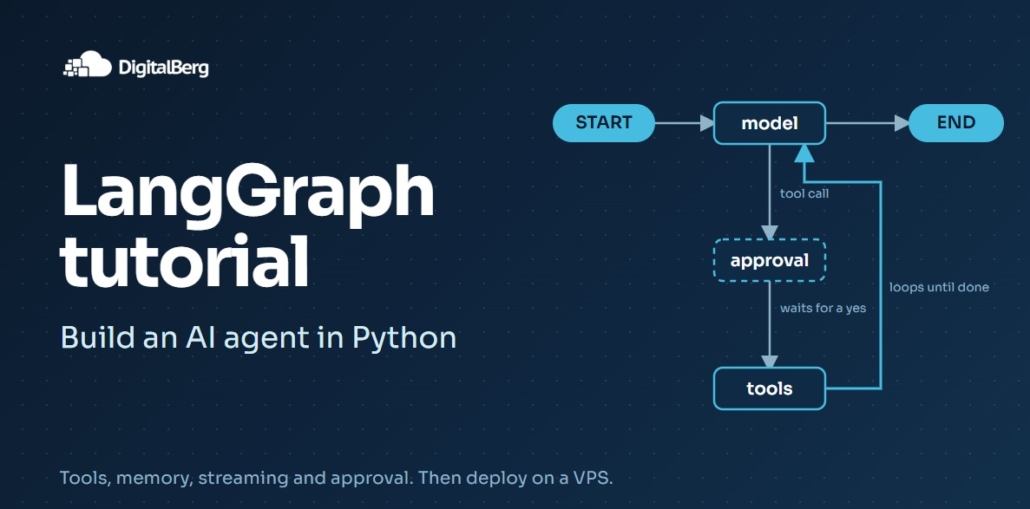
tools_condition checks the latest model message. If it contains a tool request, the graph goes to tools. Otherwise it goes to END. The edge from tools back to model creates the loop, so the model can read the tool result and write its final answer.
Every loop needs a way out. If a graph never reaches END, LangGraph stops it with a recursion error.
Step 6: Add Memory with a Checkpointer
By default, each invoke() call starts from scratch. To keep history between calls, compile the graph with a checkpointer and give each conversation a thread_id:
from langgraph.checkpoint.memory import InMemorySaver

graph = builder.compile(checkpointer=InMemorySaver())

config = {"configurable": {"thread_id": "customer-1"}}

graph.invoke(
    {"messages": [{"role": "user", "content": "My name is Sam."}]},
    config=config,
)

result = graph.invoke(
    {"messages": [{"role": "user", "content": "What is my name?"}]},
    config=config,
)
print(result["messages"][-1].content)
The second call reuses customer-1, so the model sees the earlier message. A different thread ID starts a separate, empty conversation. InMemorySaver is great for testing, but everything disappears when Python stops. We fix that in the deployment section.
Step 7: Stream the Agent’s Output
Waiting for a full answer feels slow in a chat interface. Streaming lets you show progress as it happens.
To see each node’s update as it finishes:
for update in graph.stream(
    {"messages": [{"role": "user", "content": "Is 50,000 visitors a month a VPS case?"}]},
    config={"configurable": {"thread_id": "stream-1"}},
    stream_mode="updates",
):
    print(update)
To stream the model’s text token by token:
for chunk, metadata in graph.stream(
    {"messages": [{"role": "user", "content": "Explain LangGraph state briefly."}]},
    config={"configurable": {"thread_id": "stream-2"}},
    stream_mode="messages",
):
    if chunk.content:
        print(chunk.content, end="", flush=True)
Use updates for debugging and progress views. Use messages for a typing effect in a chat UI.
Step 8: Add Human Approval with Interrupts
Some actions should not run on their own, such as sending an email, deleting data or placing an order. LangGraph handles this with interrupt(), which pauses the graph until a person responds.
Add an approval node between the model and the tools:
from typing import Literal
from langchain_core.messages import AIMessage, ToolMessage
from langgraph.types import Command, interrupt

def approval_node(state: AgentState) -> Command[Literal["tools", "__end__"]]:
    calls = state["messages"][-1].tool_calls

    approved = interrupt({"question": "Run these tool calls?", "tool_calls": calls})

    if approved is True:
        return Command(goto="tools")

    refusals = [
        ToolMessage(content="The user rejected this tool call.", tool_call_id=c["id"])
        for c in calls
    ]
    refusals.append(AIMessage(content="Understood. I did not run the tool."))
    return Command(update={"messages": refusals}, goto=END)
Then route tool requests through it:
builder = StateGraph(AgentState)
builder.add_node("model", model_node)
builder.add_node("approval", approval_node)
builder.add_node("tools", ToolNode(tools))

builder.add_edge(START, "model")
builder.add_conditional_edges("model", tools_condition, {"tools": "approval", END: END})
builder.add_edge("tools", "model")

graph = builder.compile(checkpointer=InMemorySaver())
Run it, and the graph stops at the approval step:
config = {"configurable": {"thread_id": "approval-1"}}

paused = graph.invoke(
    {"messages": [{"role": "user", "content": "Hosting for 40,000 monthly visitors?"}]},
    config=config,
)
print(paused["__interrupt__"][0].value)   # shows the pending tool call

final = graph.invoke(Command(resume=True), config=config)  # or resume=False
print(final["messages"][-1].content)
Resuming needs the same thread ID. Also remember that a paused node restarts from its first line when resumed. Keep any code before interrupt() safe to run twice, and put one-time actions (emails, database writes) after the approval point.
Deploy Your LangGraph Agent on an Ubuntu VPS
An agent on your laptop is only available while the laptop is on. For something that stays available, deploy it to a VPS. A VPS gives you root access and dedicated resources. It is also useful for an agent that handles several conversations at once, because you control the Python version, the firewall and the background services.
New to servers? Start with our guides on how to set up an Ubuntu VPS server and how to connect to a VPS using SSH.
Because the model runs on your provider’s API, your server only runs Python and the web service. You do not need a GPU. A small DigitalBerg VPS is a reasonable starting point for light workloads. Check your actual memory and CPU use before you scale up.
1. Prepare the server
Connect over SSH and install the basics:
apt update && apt upgrade -y
apt install -y python3 python3-venv python3-pip
mkdir -p /opt/langgraph-agent
2. Upload the project
From your local machine:
scp app.py requirements.txt user@your-server-ip:/opt/langgraph-agent/On the server:
cd /opt/langgraph-agent
python3 -m venv .venv
source .venv/bin/activate
pip install -r requirements.txt
pip install langgraph-checkpoint-sqlite fastapi uvicorn
nano .env          # add OPENAI_API_KEY=your-api-key
chmod 600 .env
3. Save checkpoints to disk and expose an API
Here is the complete app.py. It combines everything above, swaps InMemorySaver for SqliteSaver so history survives restarts, and exposes two endpoints:
import os
import sqlite3
from typing import Annotated, Literal

from dotenv import load_dotenv
from fastapi import FastAPI
from pydantic import BaseModel
from typing_extensions import TypedDict

from langchain_core.messages import AIMessage, AnyMessage, ToolMessage
from langchain_core.tools import tool
from langchain_openai import ChatOpenAI
from langgraph.checkpoint.sqlite import SqliteSaver
from langgraph.graph import END, START, StateGraph
from langgraph.graph.message import add_messages
from langgraph.prebuilt import ToolNode, tools_condition
from langgraph.types import Command, interrupt

load_dotenv()


class AgentState(TypedDict):
    messages: Annotated[list[AnyMessage], add_messages]


@tool
def suggest_hosting_type(monthly_visitors: int) -> str:
    """Suggest a hosting type for a website based on monthly visitors."""
    if monthly_visitors < 10_000:
        return "Shared hosting is usually enough."
    if monthly_visitors < 200_000:
        return "A VPS is a sensible next step."
    return "Consider a dedicated server."


tools = [suggest_hosting_type]
llm = ChatOpenAI(model="gpt-4o-mini").bind_tools(tools)


def model_node(state: AgentState):
    return {"messages": [llm.invoke(state["messages"])]}


def approval_node(state: AgentState) -> Command[Literal["tools", "__end__"]]:
    calls = state["messages"][-1].tool_calls
    approved = interrupt({"question": "Run these tool calls?", "tool_calls": calls})

    if approved is True:
        return Command(goto="tools")

    refusals = [
        ToolMessage(content="The user rejected this tool call.", tool_call_id=c["id"])
        for c in calls
    ]
    refusals.append(AIMessage(content="Understood. I did not run the tool."))
    return Command(update={"messages": refusals}, goto=END)


builder = StateGraph(AgentState)
builder.add_node("model", model_node)
builder.add_node("approval", approval_node)
builder.add_node("tools", ToolNode(tools))
builder.add_edge(START, "model")
builder.add_conditional_edges("model", tools_condition, {"tools": "approval", END: END})
builder.add_edge("tools", "model")

db_path = os.getenv("CHECKPOINT_DB", "/opt/langgraph-agent/checkpoints.sqlite")
connection = sqlite3.connect(db_path, check_same_thread=False)
graph = builder.compile(checkpointer=SqliteSaver(connection))

app = FastAPI()


class ChatRequest(BaseModel):
    message: str
    thread_id: str


class ApprovalRequest(BaseModel):
    thread_id: str
    approved: bool


def cfg(thread_id: str):
    return {"configurable": {"thread_id": thread_id}}


@app.post("/chat")
def chat(req: ChatRequest):
    result = graph.invoke(
        {"messages": [{"role": "user", "content": req.message}]},
        config=cfg(req.thread_id),
    )
    if "__interrupt__" in result:
        return {"status": "needs_approval", "request": result["__interrupt__"][0].value}
    return {"status": "complete", "message": result["messages"][-1].content}


@app.post("/approve")
def approve(req: ApprovalRequest):
    result = graph.invoke(Command(resume=req.approved), config=cfg(req.thread_id))
    return {"status": "complete", "message": result["messages"][-1].content}
Test it from the server before you go any further:
uvicorn app:app --host 127.0.0.1 --port 8000 --workers 1In a second terminal:
curl -X POST http://127.0.0.1:8000/chat \
  -H "Content-Type: application/json" \
  -d '{"message":"Hosting for 40,000 monthly visitors?","thread_id":"test-1"}'
You should get needs_approval back. Approve it with:
curl -X POST http://127.0.0.1:8000/approve \
  -H "Content-Type: application/json" \
  -d '{"thread_id":"test-1","approved":true}'
Binding to 127.0.0.1 keeps the API private to the server. Use --workers 1 here, because the approval flow and SQLite checkpoints are simplest to reason about with a single process.
4. Keep it running with systemd
Press Ctrl + C to stop Uvicorn. Then create a dedicated user and a service file:
useradd --system --home /opt/langgraph-agent --shell /usr/sbin/nologin langgraph
chown -R langgraph:langgraph /opt/langgraph-agent
nano /etc/systemd/system/langgraph-agent.service[Unit]
Description=LangGraph agent API
After=network-online.target
Wants=network-online.target
[Service]
User=langgraph
Group=langgraph
WorkingDirectory=/opt/langgraph-agent
EnvironmentFile=/opt/langgraph-agent/.env
ExecStart=/opt/langgraph-agent/.venv/bin/uvicorn app:app --host 127.0.0.1 --port 8000 --workers 1
Restart=on-failure
RestartSec=5
[Install]
WantedBy=multi-user.targetEnable and start it:
systemctl daemon-reload
systemctl enable --now langgraph-agent
systemctl status langgraph-agent
If it fails, read the logs with journalctl -u langgraph-agent -n 50 --no-pager.
5. Before you expose it publicly
The API above has no login, so anyone who can reach it can spend your model credits. Before you open it to the internet:
- Put a reverse proxy such as Nginx in front of it and enable HTTPS
- Add authentication (an API key or token check) to both endpoints
- Allow only the ports you need through the firewall
- Add rate limits so one client cannot flood the agent
Tips for Improving Your Agent
- Retest every path after changes. Check the direct answer, tool call, approval and rejection flows each time you update the graph.
- Use one thread ID per conversation. Reusing a thread for unrelated users mixes their histories.
- Require approval only for sensitive tools. Read-only lookups usually do not need it.
- Back up your checkpoint database. Copy
checkpoints.sqlitesomewhere off the server before upgrades. - Upgrade packages one at a time. Test locally before you redeploy.
- Keep secrets out of code. Use the
.envfile with strict permissions, as shown above.
Frequently Asked Questions
What is LangGraph used for?
LangGraph is used to build AI agents and multi-step workflows that need loops, branching, saved state, tool calls and human approval.
Is LangGraph the same as LangChain?
No. LangChain provides higher-level components and agent patterns. LangGraph provides lower-level control over how your workflow runs. LangGraph can use LangChain’s integrations but does not require its agent abstractions.
Do I need a GPU to run a LangGraph agent?
Not if your agent calls a hosted model through an API, as in this guide. Your server only runs Python and the API service. A GPU matters if you choose to host the model yourself.
Can I use a different model provider?
Yes. Install the matching LangChain integration package and swap the model line. The graph, state, memory and approval logic stay the same.
What is a checkpointer in LangGraph?
A checkpointer saves the graph’s state after each step. It enables memory across calls, resuming paused runs and recovering after a restart. InMemorySaver is for testing, and SqliteSaver stores checkpoints on disk.
Why deploy an AI agent on a VPS?
A VPS keeps your agent available around the clock, gives you control over the environment and lets you keep services and data on infrastructure you manage.
Final Thoughts
LangGraph turns an AI agent from a single prompt into a workflow you can see, test and control. You defined the state, added a model node, routed to a tool, remembered conversations, streamed replies and paused for approval. Then you moved it onto a server.
If you are ready to run your agent around the clock, explore DigitalBerg VPS hosting and choose a plan that fits your workload.






Trackbacks & Pingbacks
[…] you are experimenting with AI agents or automation services, explore our VPS hosting options, our LangGraph AI agent tutorial, and our guide to setting up an Ubuntu VPS. Image note: Easy MCP AI images are authentic […]
Leave a Reply
Want to join the discussion?Feel free to contribute!