
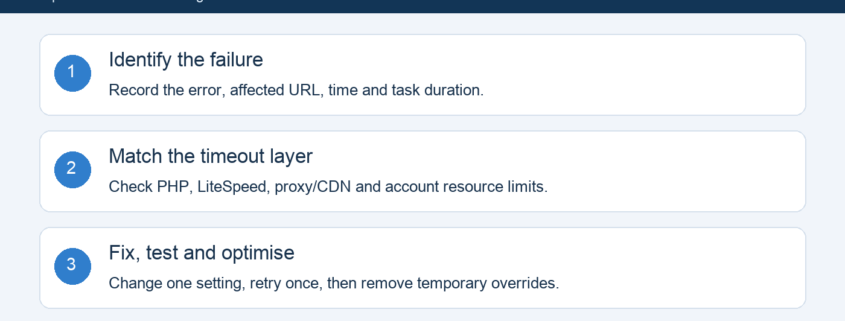
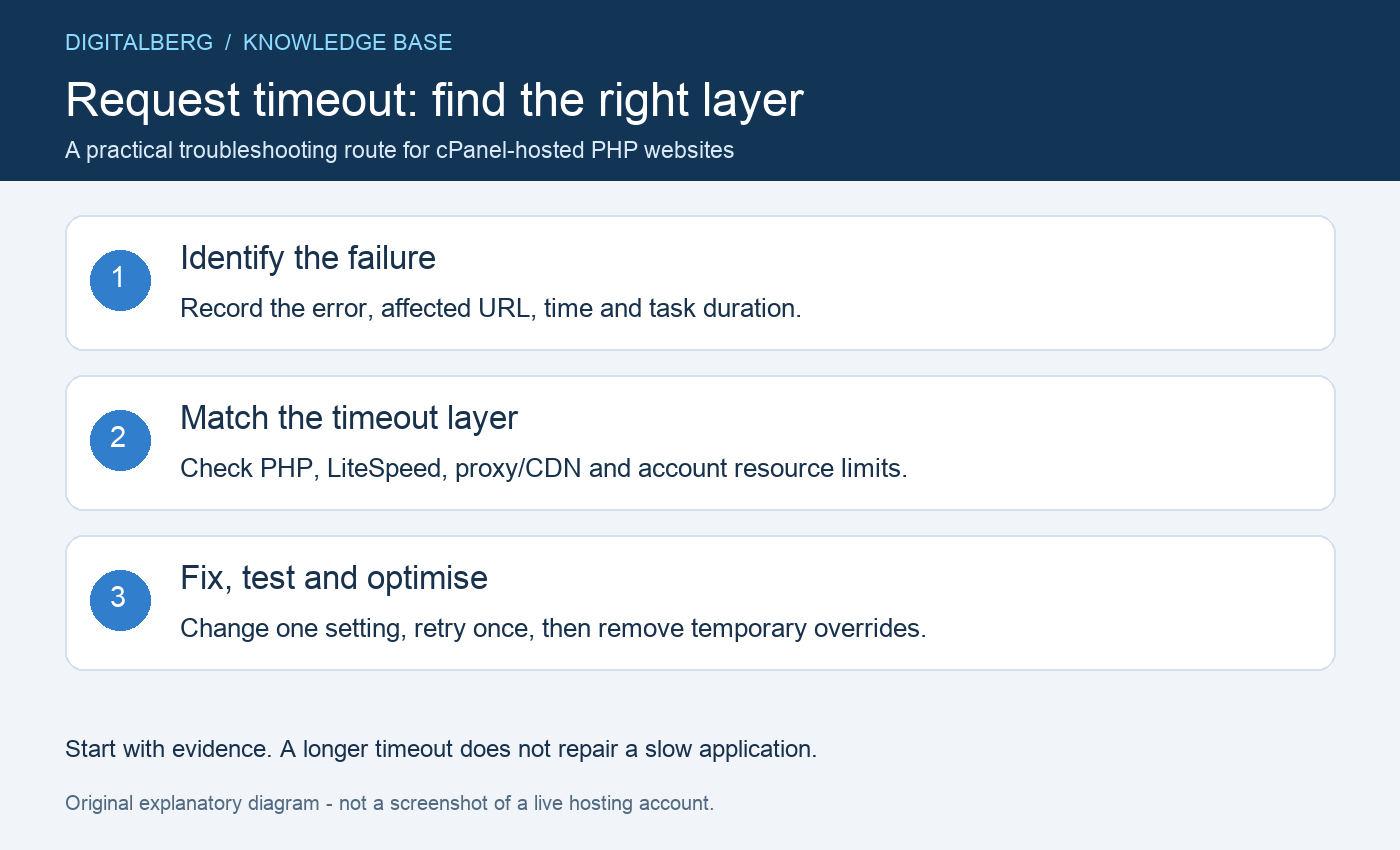
cPanel Request Timeout errors mean a request has taken longer than one of the systems handling it will allow. You might see it while importing products, restoring a backup, updating a plugin or opening a slow page. The right fix depends on which layer stops the request: PHP, the web server, a proxy or the hosting account itself.
This DigitalBerg guide explains how to identify that layer, adjust the relevant setting and improve the underlying task. cPanel is the hosting control panel; seeing this message does not, by itself, prove that cPanel caused it.
On this page: Identify the error · First checks · PHP settings · LiteSpeed fix · Proxy timeouts · Optimisation · Verification · FAQs
1. Identify the cPanel Request Timeout error
Do not treat every “timed out” message as the same fault. Record the full message, HTTP status, affected URL and how many seconds passed before the failure. Keep a screenshot for your support ticket, with personal information hidden.
- PHP execution error: a log entry mentioning “Maximum execution time” points towards the PHP runtime limit.
- LiteSpeed request timeout: a branded timeout page or connection-timeout wording may indicate a web-server limit. Confirm the server software with your provider before using LiteSpeed rules.
- Cloudflare 524: Cloudflare connected to the origin but did not receive a timely response. Review origin performance and the separate proxy timeout. See Cloudflare’s 524 documentation.
- Browser connection timeout: if the website or control panel never opens, investigate connectivity, DNS, firewall rules and service availability before changing PHP settings.
- 502, 503 or 504: inspect the corresponding server and application logs; the status alone does not identify the setting to change.
2. Run these checks before editing settings
- Back up the application and any configuration file you plan to edit. Record the original settings.
- Try a small, harmless task first. If only a large import fails, compare the input size and duration.
- Check whether the previous job is still running before retrying. Repeated clicks can create duplicate imports, overlapping backups or queued requests.
- Look at cPanel Errors and Resource Usage, if your plan exposes them. Ask support to check CPU, memory, I/O, PHP workers and account limits when those tools are unavailable.
- Review recent changes: plugin updates, larger data files, scheduled jobs or a newly connected API can narrow the investigation.
3. Review PHP limits in MultiPHP INI Editor
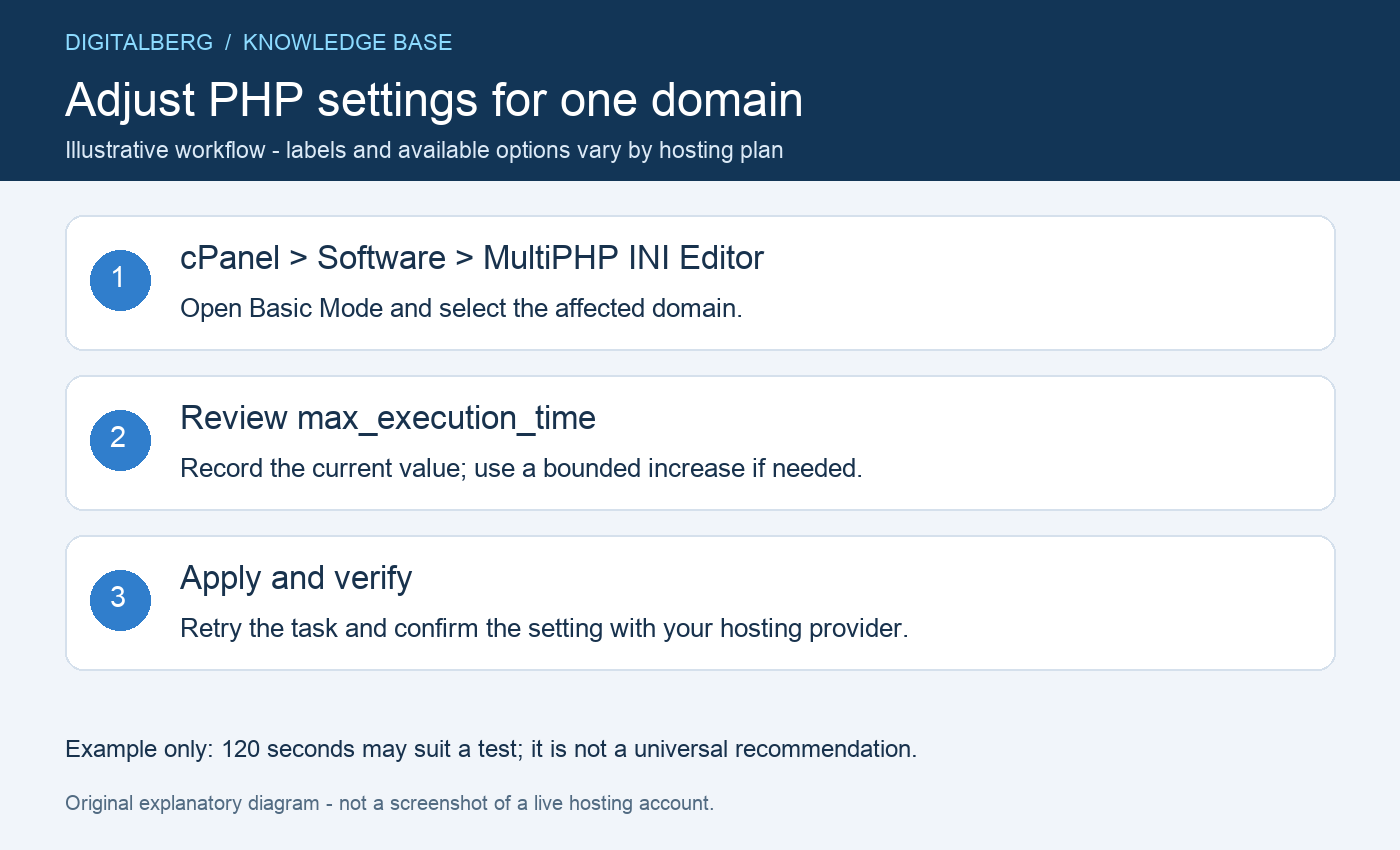
Where your host enables it, open cPanel → Software → MultiPHP INI Editor → Basic Mode, select the affected domain, review the settings and click Apply after an appropriate change. Prefer a domain-specific adjustment over changing every website on the account. The official cPanel guide explains the interface and configuration-file behaviour.
For example, if a legitimate operation needs a little longer than the current execution limit, a temporary test value of 120 seconds may be reasonable after checking hosting limits. This is an example, not a recommended value for every site. Confirm the active value and restore a suitable normal limit when testing is complete.
max_execution_time = 120max_execution_time concerns script execution. max_input_time concerns parsing input, so increasing it is not a substitute for fixing a slow query or external API call. Upload failures may also involve file-size limits. Check the relevant setting instead of raising every value. See the PHP runtime configuration reference.
If you manage the server in WHM, use its MultiPHP INI Editor for the PHP version serving the affected website. cPanel documents this route in its execution-time troubleshooting article. Shared-hosting customers should ask their provider when a setting is locked or does not take effect. Avoid adding php_value lines blindly to .htaccess; compatibility depends on the PHP handler.
4. Apply a scoped LiteSpeed override only when needed
LiteSpeed has separate connection and request-abort controls. Its official long-running PHP guide recommends narrow exceptions rather than applying them to every request. These settings do not override all PHP, proxy or account limits.
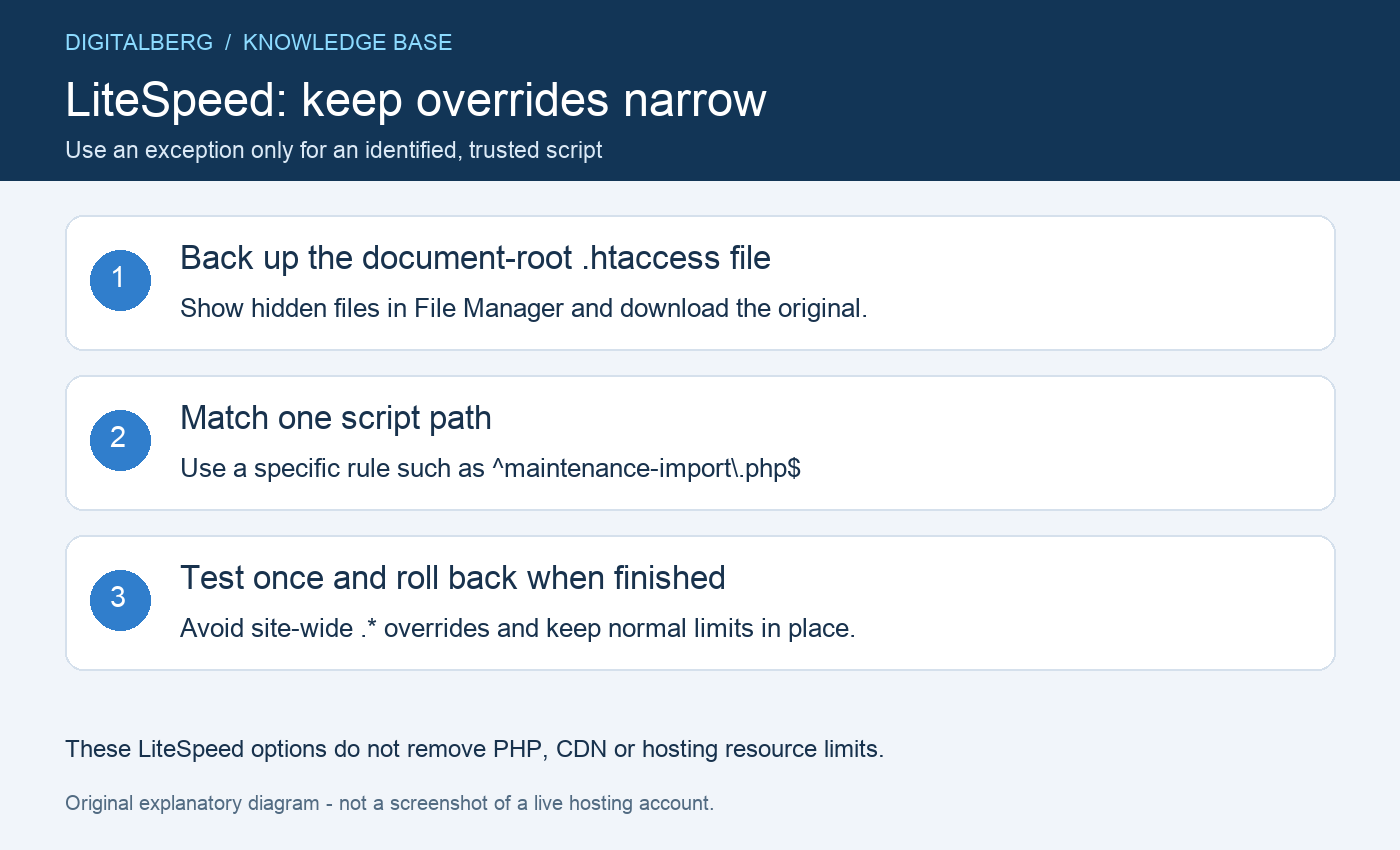
For a confirmed LiteSpeed environment, a provider may approve a rule like this in the domain document-root .htaccess file, above application rewrite rules:
<IfModule Litespeed>
    RewriteEngine On
    RewriteRule ^maintenance-import\.php$ - [E=noabort:1,E=noconntimeout:1]
</IfModule>
Replace the example filename with the actual script path relative to that .htaccess file. noabort allows the task to continue after a broken connection; noconntimeout disables the LiteSpeed connection timeout for the matched request. Use only the option the task requires. Do not replace the match with .*: a broad exception can leave expensive requests occupying resources. Keep maintenance scripts authenticated.
In File Manager, enable hidden files, download the original .htaccess, then make the approved edit. If the website starts returning errors, restore the original immediately. Remove a temporary exception when the job finishes. Server-level LiteSpeed and LSAPI changes belong with the administrator.
5. Check reverse-proxy and CDN limits
A request can pass through several systems before reaching PHP. Increasing the PHP execution limit will not automatically increase a CDN or reverse proxy limit. For a Cloudflare 524, correlate the failure with origin logs and request duration. For other proxies, ask the administrator which upstream timeout applies.
For lengthy exports or reports, a better application design is to accept the job quickly, process it in the background and let the browser check progress. Cloudflare also recommends a status-polling approach for large HTTP processes in its 524 troubleshooting guidance.
6. Prevent recurring cPanel Request Timeout errors
Use the following as a practical investigation checklist. Measure changes against the same input and record task duration, success and resource consumption.
- Split large jobs: import smaller batches and save progress so a failed batch can resume safely.
- Avoid overlapping work: schedule backups, scans and imports at different times; use job locking where supported.
- Inspect database work: identify slow queries, repeated lookups and missing indexes before altering the schema. Test changes against a backup or staging copy.
- Bound external requests: set sensible API connection and response limits, retry transient failures with backoff and prevent endless loops.
- Review WordPress components: reproduce the failure on staging and isolate recently changed plugins one at a time. Do not disable a live store’s essential components during trading.
- Use background processing: choose an application-supported queue, cron or CLI workflow for long maintenance jobs, with logging and access control.
- Cache appropriate public output: avoid caching checkout, account pages or private task responses. Caching will not repair a stalled import.
- Review capacity with evidence: consider more resources only after sustained limits have been measured and inefficient work addressed.
7. Verify the fix and prepare a useful support ticket
- Repeat the original operation once with a controlled input. Confirm it completed in application records, not just in the browser.
- Compare elapsed time and logs with the original failure. Check that no duplicate jobs remain.
- Test the homepage, login and any affected checkout or form.
- Restore temporary settings or document why a permanent exception is required.
- If it still fails, send support the domain, affected path, exact error, timestamp with timezone, duration, recent changes and redacted log entries. Never include passwords or API keys.
DigitalBerg customers can contact the support team with these details. For configuration-file help, see How to Edit .htaccess File.
Frequently asked questions
Will raising max_execution_time fix every Request Timeout error?
No. It helps only when PHP’s execution limit is the relevant constraint. Web server, proxy, resource and application failures need their own diagnosis.
Should I set an unlimited timeout?
For a public website, prefer a bounded limit and a background job for lengthy work. An unlimited request can consume resources without finishing.
Can I use the LiteSpeed rule on Apache or Nginx?
The environment variables in this example are LiteSpeed-specific. Ask the administrator for the settings appropriate to your server.
What if MultiPHP INI Editor is missing?
Your provider may disable it or use a different PHP management interface. Ask which settings your plan allows.
Why does a job keep running after the browser times out?
The browser connection and server-side task have separate lifecycles. Check job status before starting it again.
References and related reading
- cPanel: MultiPHP INI Editor
- cPanel: increasing PHP execution time
- LiteSpeed: PHP without timeout and scoped exceptions
- PHP: runtime configuration
- Cloudflare: Error 524
Documentation reviewed: 22 October 2026. Illustrations are original explanatory diagrams; menu availability varies by hosting plan and server configuration.