
This WordPress cheat sheet brings routine maintenance, development and SEO checks into one practical reference. Use it to choose the next useful action, rather than running every command on a production website. Back up first, test changes on staging and keep a record of what you changed.
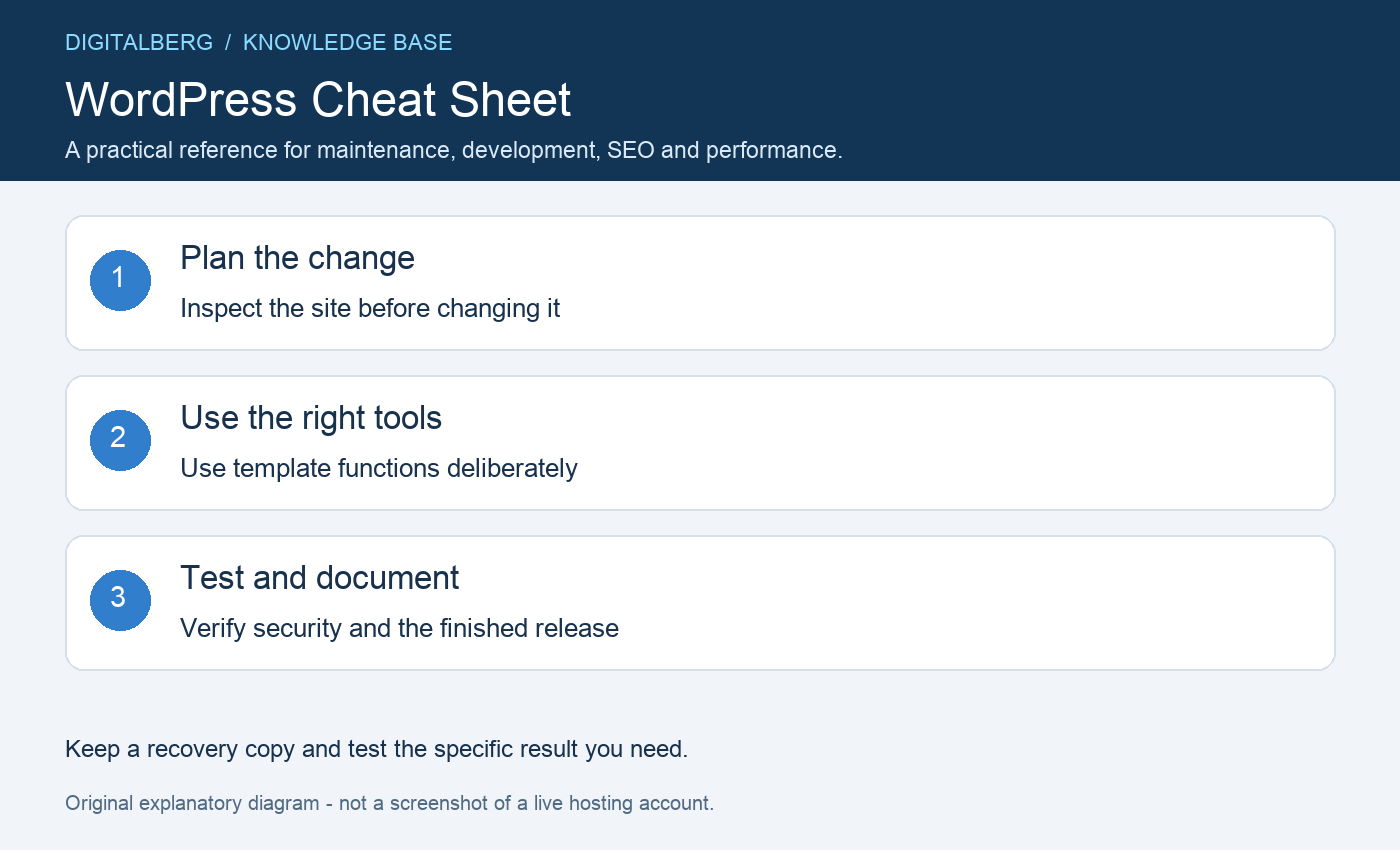
1. WordPress cheat sheet: inspect the site before changing it
Record the WordPress version, active theme, plugins and PHP environment. Check Site Health in the dashboard and identify any existing errors so they are not mistaken for problems caused by your update.
If WP-CLI is installed, run commands from the correct installation directory as the appropriate account user. These are useful inspection commands:
wp core version
wp plugin list
wp theme list
wp option get home
wp option get siteurl
Read the official command reference before adding options or using commands across a multisite network.
2. Back up and test updates
Take a recoverable backup of both the database and files, stored away from the public website folder. Check that you can restore it and that the backup belongs to the site you intend to change.
Update a staging copy first and test the important workflows. Apply approved changes in a maintenance window, then check the live site. Avoid treating a bulk update command as a substitute for compatibility testing.
Our backup and restore guide explains the different recovery components. Never put database dumps in public_html as a convenient long-term archive.
3. Choose the right theme development model
Classic themes commonly use PHP templates such as single.php, page.php and archive.php. Block themes use HTML block templates and can use theme.json for settings and styles. A file list for one model should not be treated as universal.
Keep customisations in an appropriate child theme, custom plugin or supported editor workflow. Editing a parent theme directly can lose your changes during an update. See the WordPress Theme Handbook for the correct structure.
4. Use template functions deliberately
In a classic theme, functions such as get_header(), get_footer(), the_title() and the_content() help render the page. Some functions display output directly, while similarly named functions return values, so check the reference before composing templates.
Escape custom output for its context, validate input and use WordPress APIs for stored data. A short snippet copied from a cheat sheet still needs the surrounding theme context and appropriate security checks.
Do not paste PHP into an ordinary post expecting it to execute. Use a development environment and keep a working recovery route before deploying code changes.
5. Check content, links and indexing
Give each important page a clear purpose, descriptive title and useful headings. Write concise descriptions and image alt text that accurately describes the image. Add internal links where they help readers continue a task.
Review accidental noindex settings, canonical URLs, robots rules and sitemap entries. A successful response and an indexable page make discovery possible, but do not guarantee indexing or rankings.
Follow Google’s SEO Starter Guide. An SEO plugin can help manage fields, but a high plugin score is not a promise of search performance.
6. Measure performance before adding tools
Test representative pages on mobile and desktop, including an uncached visit where appropriate. Look for oversized images, slow server responses, heavy scripts and layout shifts. Use measurements to choose a change, then test again.
Use caching and image optimisation compatible with your hosting setup. Avoid stacking several tools that perform the same task. Shopping baskets, logged-in pages and personalised content need careful cache exclusions.
Check PageSpeed Insights for lab measurements and available field data. One test result is a snapshot; repeat under comparable conditions and consider real visitor experience.
7. Verify security and the finished release
Protect privileged accounts with strong authentication, reduce unnecessary administrator access and remove unused components. Keep the hosting account and recovery email protected as well as WordPress itself.
After a release, test navigation, logins, forms, checkout, email delivery and important redirects. Review logs and monitoring before closing the maintenance window. Use the login protection guide for a layered approach.
Keep this WordPress cheat sheet with your site records, but document site-specific exceptions separately. A clear rollback plan is more useful during an incident than a long list of commands you have never tested.
WordPress cheat sheet questions
Should I run database optimisation regularly?
Only for an identified need and with a backup. It is not a universal speed fix and may lock or alter tables depending on the engine and operation. Investigate slow queries, plugins and resource use first.
Can this replace a fresh installation guide?
No. For a new website, follow the manual WordPress installation guide. Keep account passwords out of shell history and shared notes; use supported interactive secret-entry methods where available.
Need help with your hosting?
For help with WordPress cheat sheet, contact DigitalBerg with the affected domain, the step you tried and a redacted error message. Never include passwords, private keys or complete configuration files containing secrets.